

Set up Twigex
On this page
For the admin who installs Twigex and invites the team. About 30 minutes, most of it the install itself. Joining a team that already uses Twigex? Go to Your first day instead.
Install Twigex
Install Twigex with the official Helm chart on Kubernetes, with Docker Compose on one server, or as a single binary. Each method sets up the first admin account during the install (Docker Compose generates its password for you), and Twigex creates it on first start.
With Helm, the admin password defaults to admin unless you set your own. Always set one, or change it right after you sign in (step 2).
You're done when the Twigex sign-in page loads at your domain.
Full guide: Installation · Helm · Single binary · Docker Compose
Sign in and secure the admin account
- Sign in with the admin account from step 1.
- Click your profile icon in the top-right corner and select Settings.
- Open Password and change it if you're still using the default.
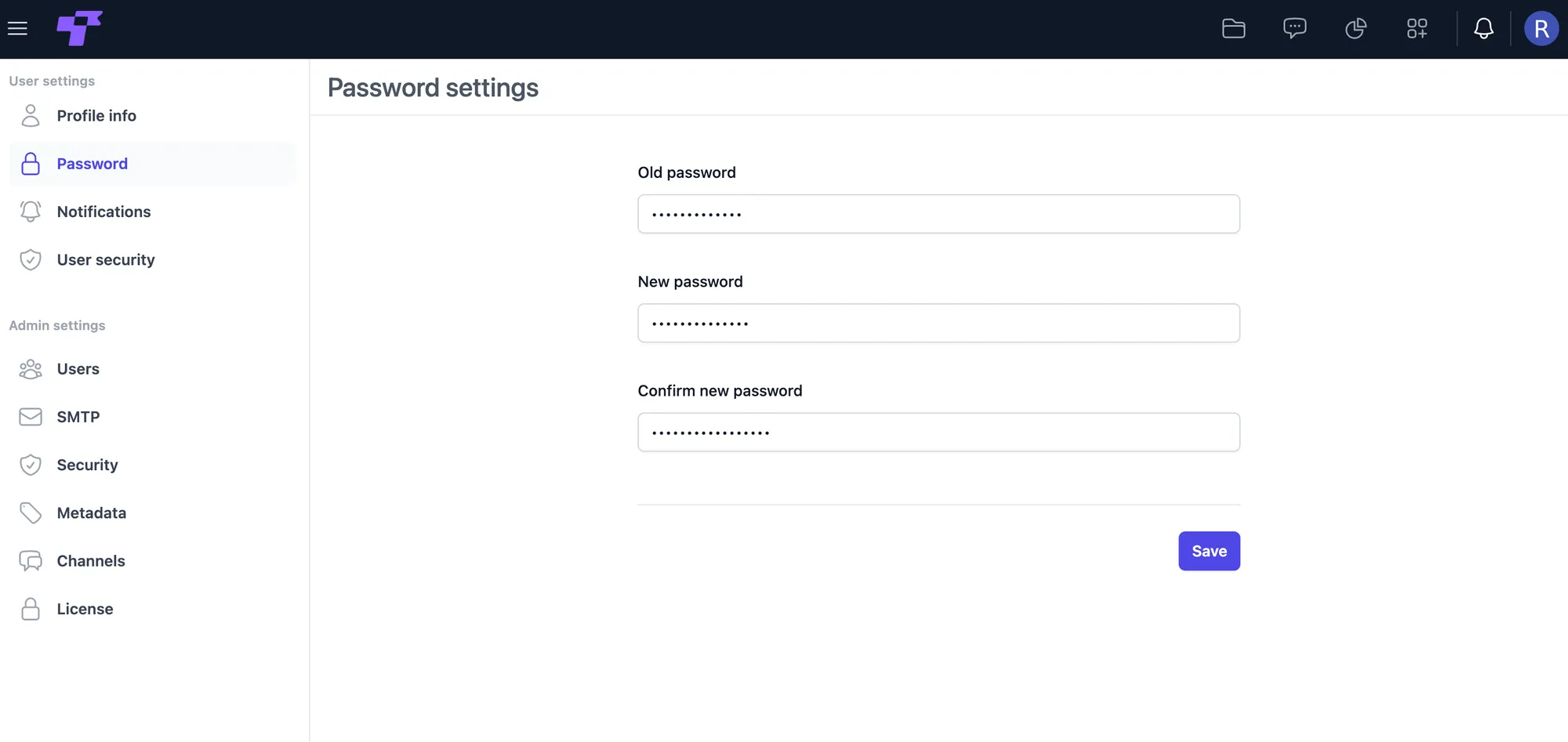
You're done when you can sign in with your new password.
Full guide: How to access your settings · Password
Connect email (SMTP)
Twigex sends notifications and password emails through your mail server. Set this up before you add your team, so new users can receive their "set your password" email.
- In Settings, open SMTP under the admin settings.
- Enter your mail server details.
- Click Test connection.
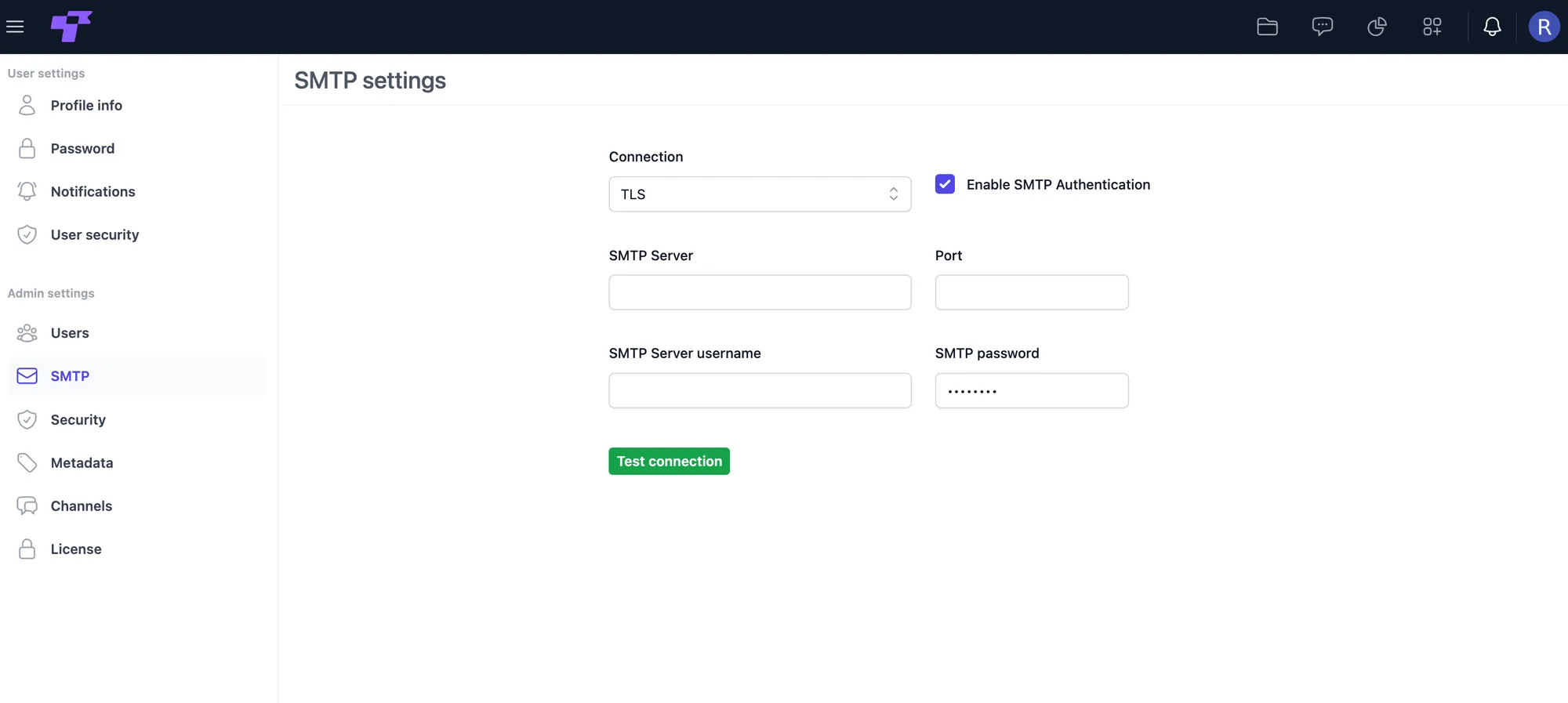
You're done when the connection test succeeds.
Full guide: Steps to configure SMTP
Add your team
- In Settings, open Users and click Add user.
- Enter the person's name, username, and email, and choose a role (System user or System admin).
- Choose how they get their password:
- Leave the password blank. They'll get an email to set their own (needs step 3). This is the better habit, since you never know anyone's password.
- Set a password yourself and share it with them. This works even without email set up.
- Click Create.
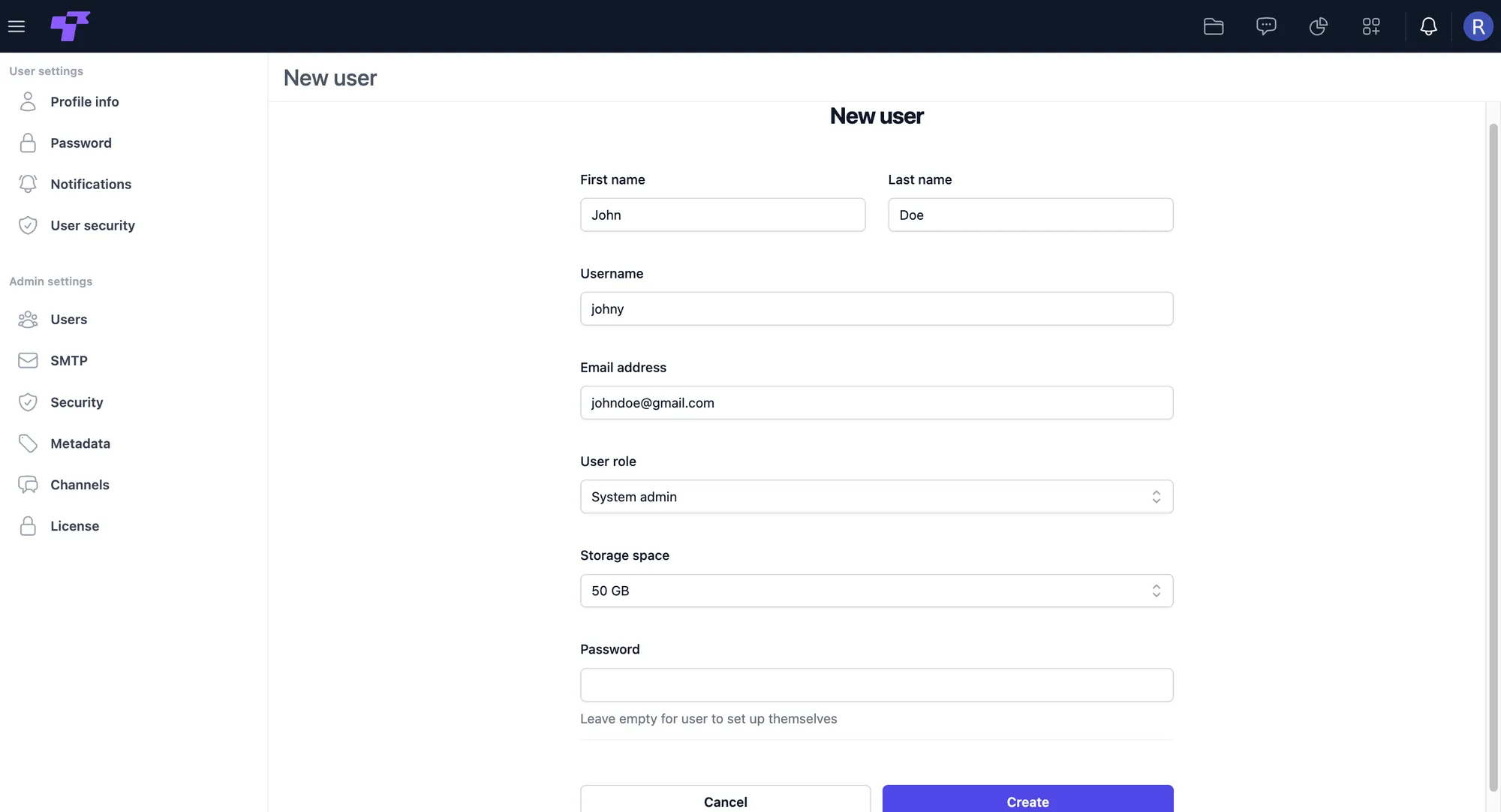
You're done when your teammates appear in the Users list.
Full guide: Create a user
Tighten security (optional)
In Settings, open Security to set a session length and a password policy for everyone. Then ask your team to turn on multi-factor authentication in their own settings.
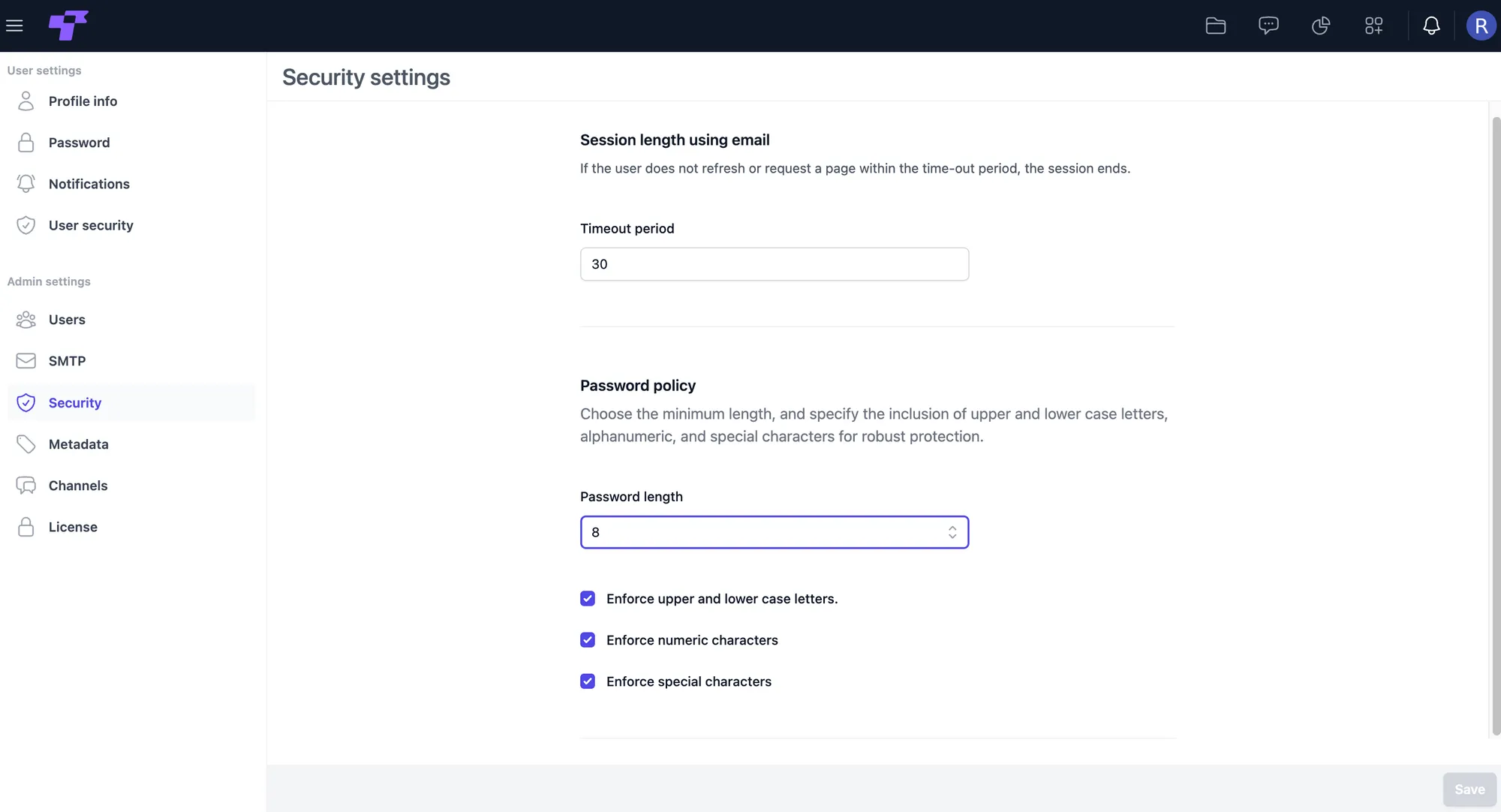
You're done when the new password rules are saved.
Full guide: Session length · Password policy · Multi-factor authentication
What's next
Your team can sign in now. Share Your first day with them: it walks everyone through files, chat, and their first project. Stuck on something? Ask on r/twigex.