

Getting started
On this page
Twigex brings your team's files, chat, projects and analytics together in one place, in your browser. Everything uses the same account, so a file you share, a task you assign and a message you send all reach the same colleague.
Some features need a Self-hosted license or Enterprise; they're marked with a note.
Where to start
I'm new to Twigex. Follow Your first day: set up your profile, share a file, send a message and plan your first project, step by step. It takes about 15 minutes.
I'm setting up Twigex for my team. Follow Set up Twigex: secure the admin account, connect email and add your team. Then see Admin settings for everything else.
I'm looking for something specific. Pick the app under Find your way around, or search the docs.
Your first 5 minutes
If you only have a few minutes, do these four things:
- Sign in with the address and account your administrator gave you.
- Add your photo and check your name under Profile info, so colleagues recognize you.
- Open Chat and say hello in a channel.
- Turn on multi-factor authentication to keep your account safe.
The rest of this page shows how to sign in and find your way around.
Sign in
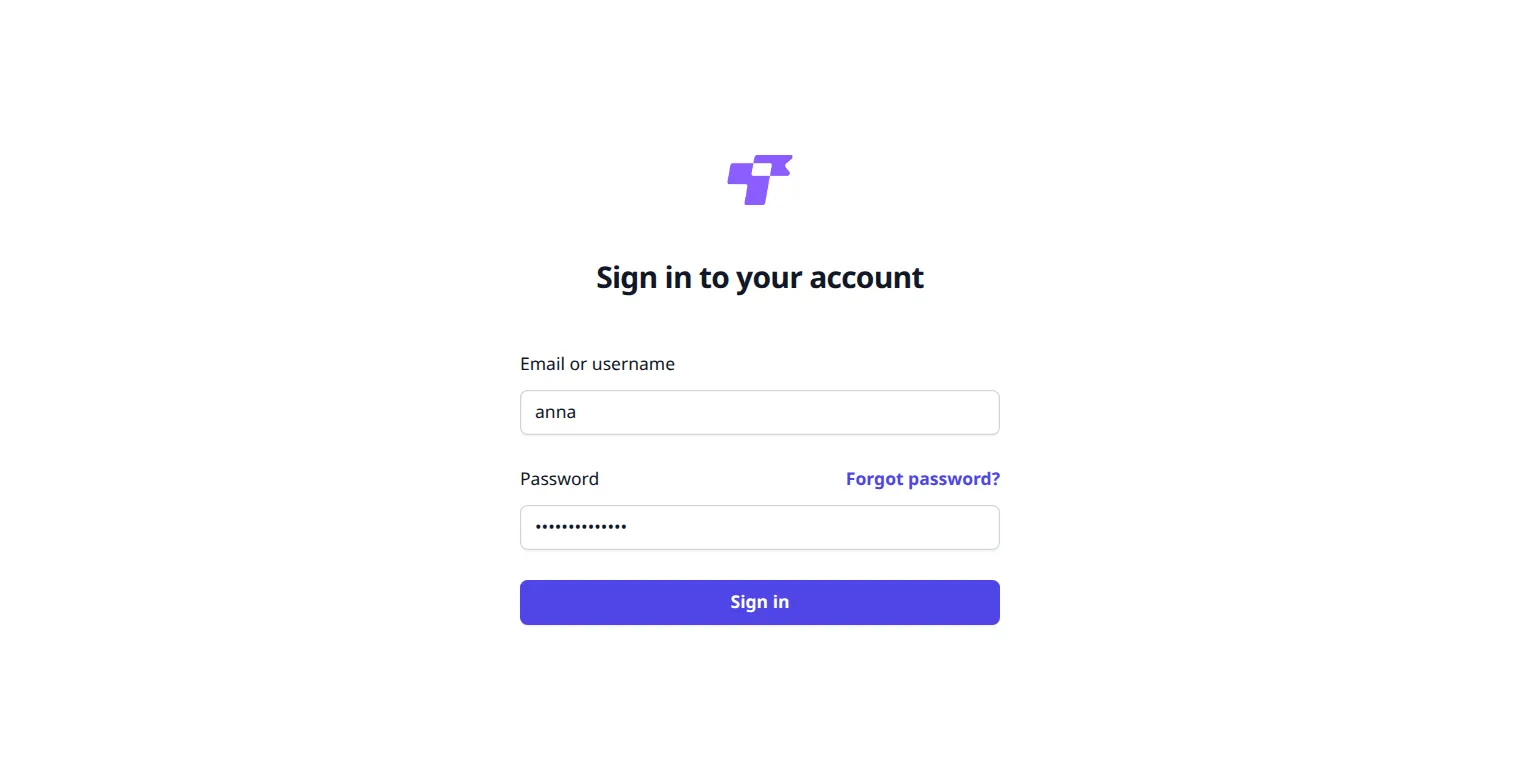
- Open the Twigex address your administrator gave you, for example
twigex.example.com. - Type your Email or username and your Password.
- Click Sign in.
Twigex works in current versions of Chrome, Edge, Firefox and Safari, also in the browser on your phone.
Enter the code from your phone
If you've turned on multi-factor authentication, Twigex asks for a code after your password.
- Open the authenticator app on your phone.
- Under Enter the 6-digit code, type the code the app shows for Twigex.
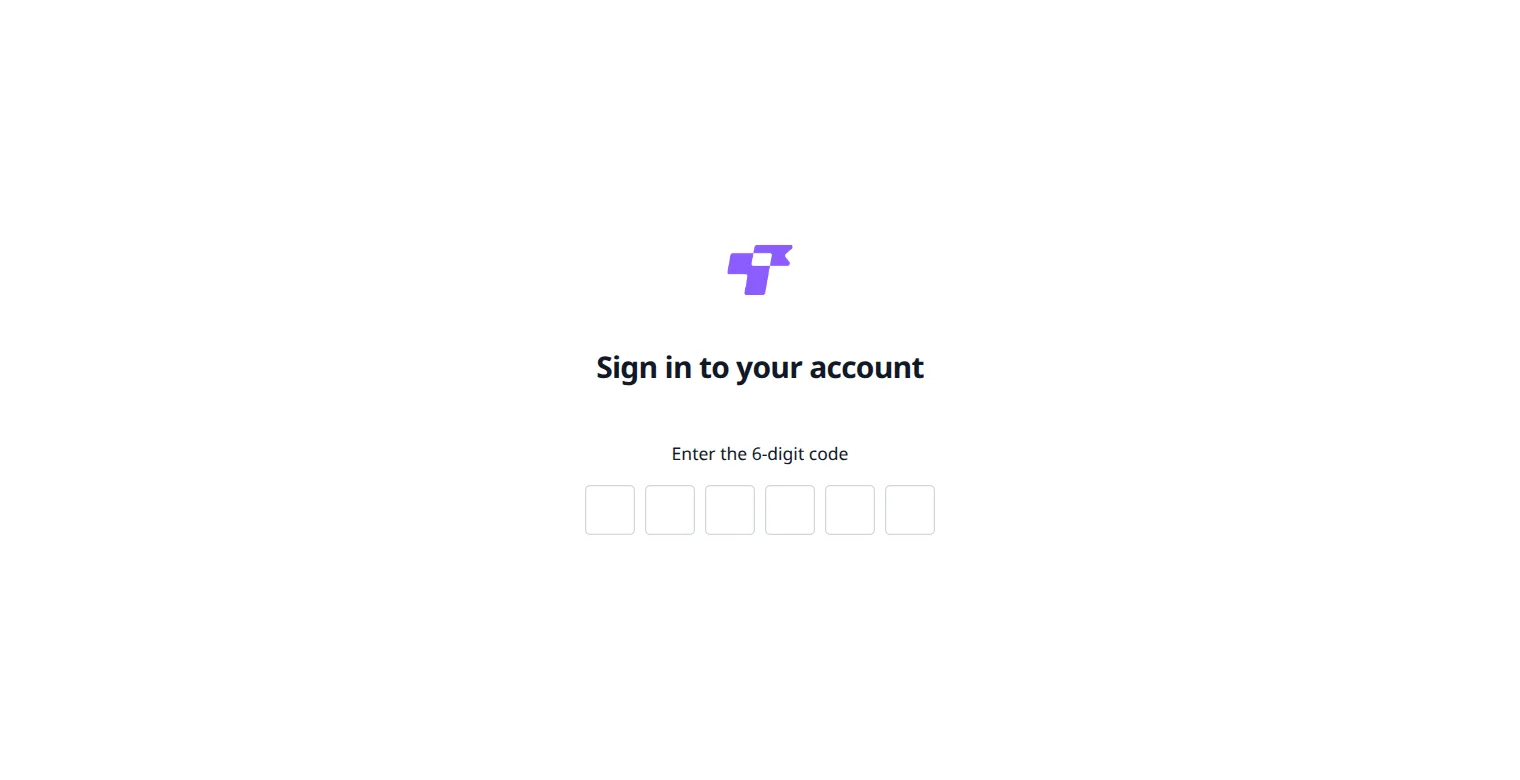
Twigex signs you in as soon as you type the sixth digit. If it says "The provided MFA token is invalid.", clear the boxes and type the current code again. The app shows a new code every 30 seconds.
If you've lost your phone, see Protect your account.
Sign in with your company account
This needs a Self-hosted license or Enterprise. See plans.
If your administrator has connected Twigex to your company's sign-in (single sign-on), the sign-in page has a button below Or continue with, for example Login with Brightwater SSO. Click it and sign in on your company's page. Your administrator can also show the button above the form.
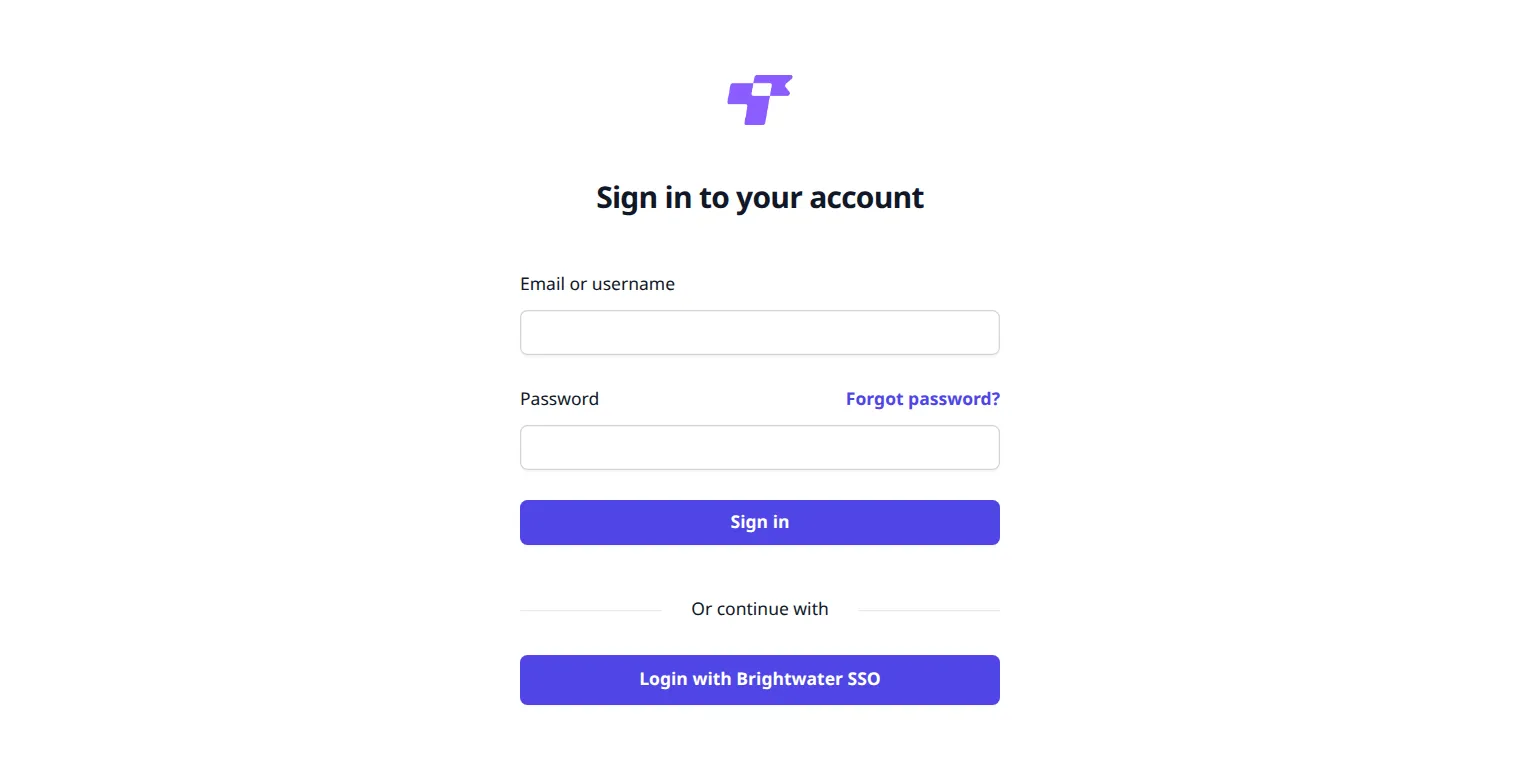
If your company uses a directory (LDAP or Active Directory), the sign-in page looks the same as usual. Type your company username and password.
Forgot your password?
- On the sign-in page, click Forgot password?.
- Type your Email Address and click Reset Password.
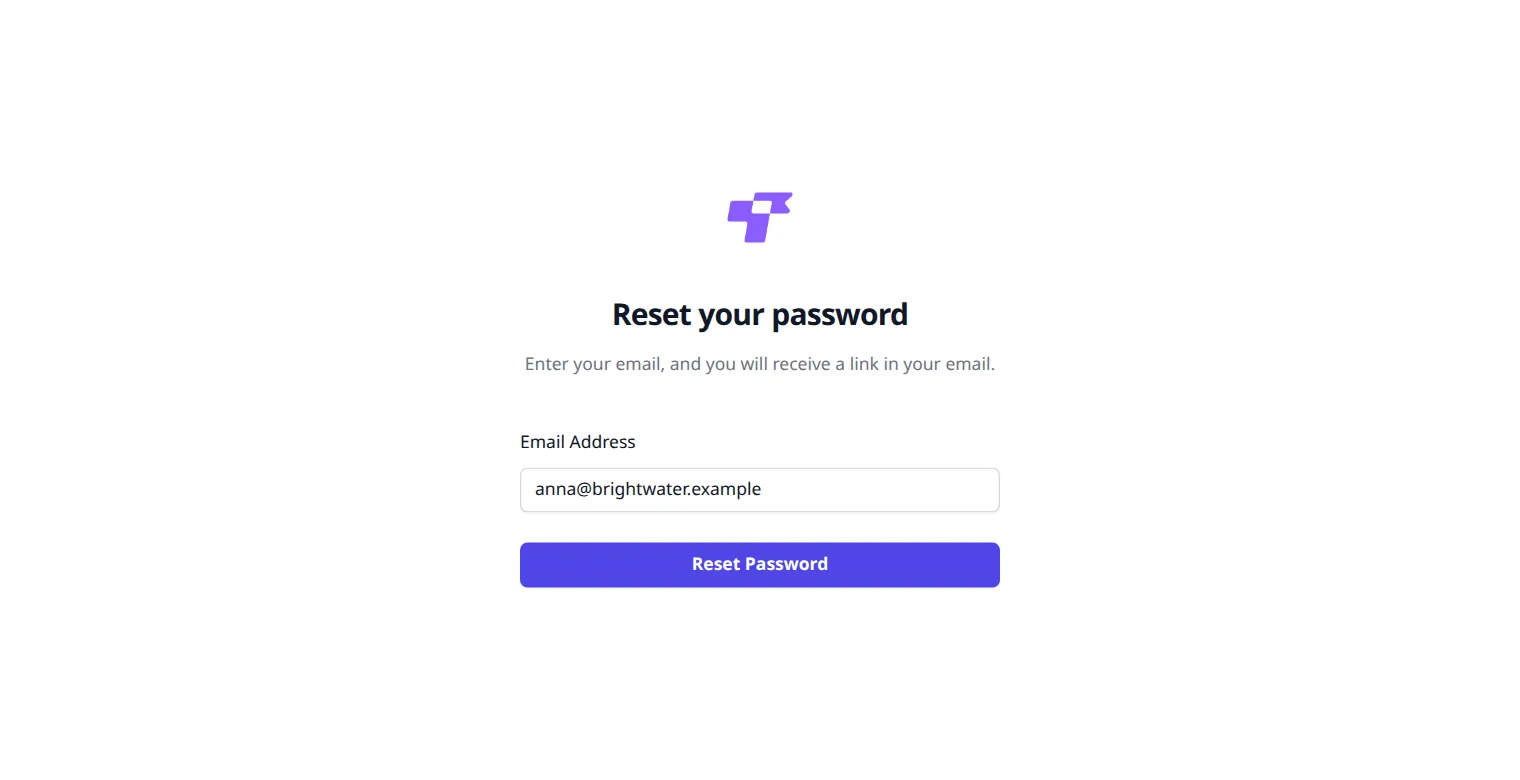
Twigex says it has sent a link, if the address belongs to an account.
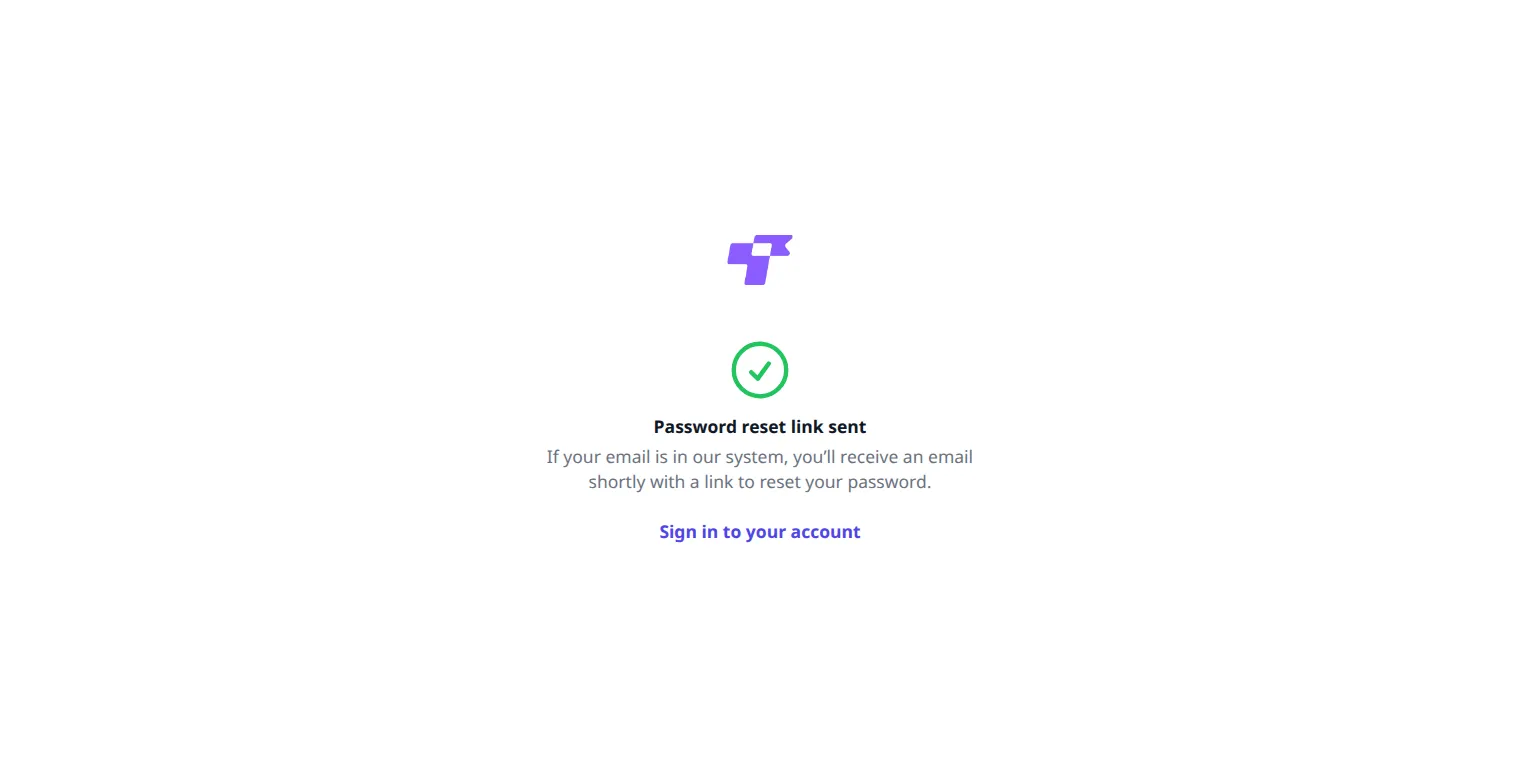
- Open the email Password reset and click Set Password.
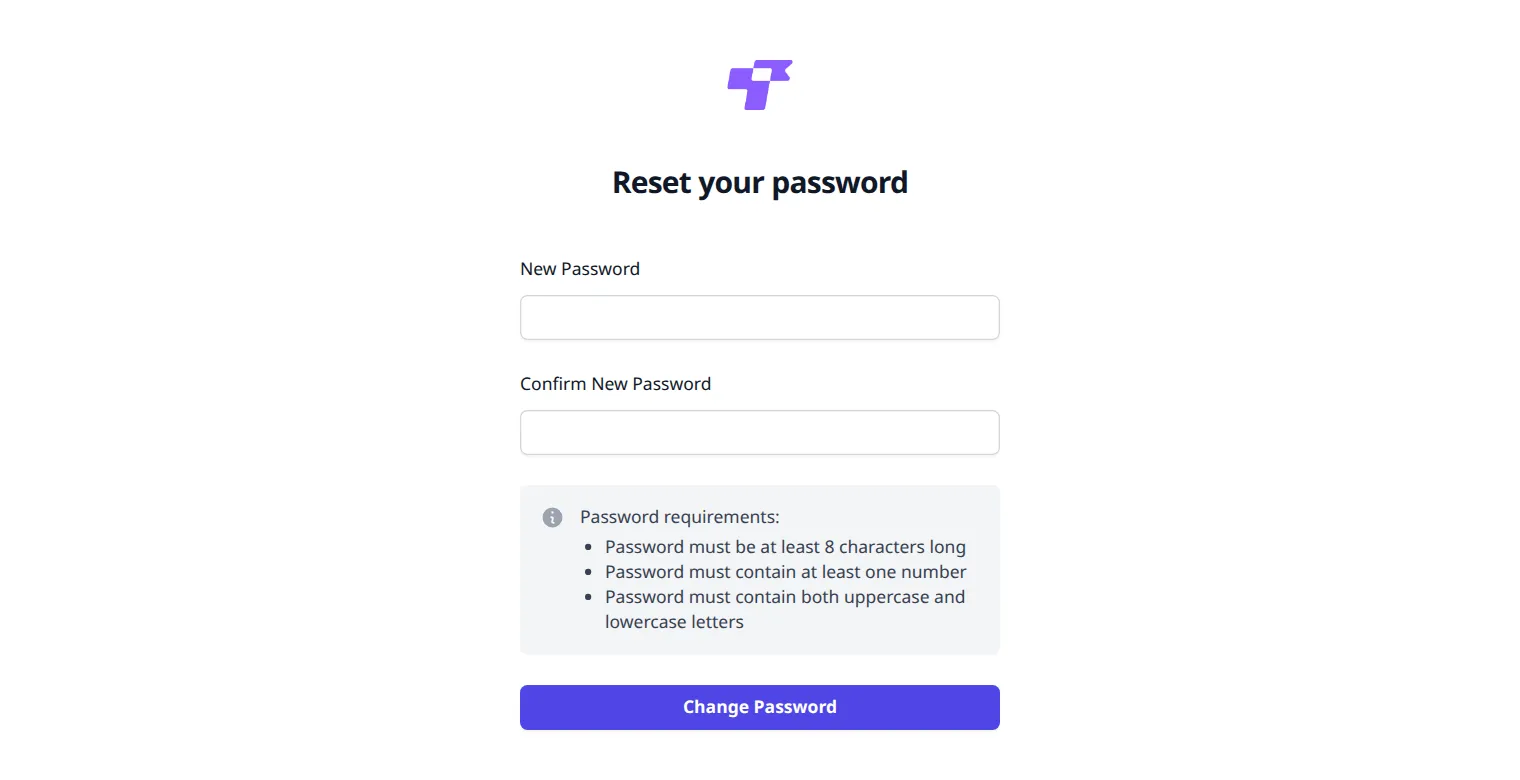
- Type your New Password twice. The box below lists what the password needs.
- Click Change Password, then sign in with the new password.
If no email arrives, check your spam folder or ask your administrator. Administrators can also send you a reset link from Admin settings > Users.
Find your way around
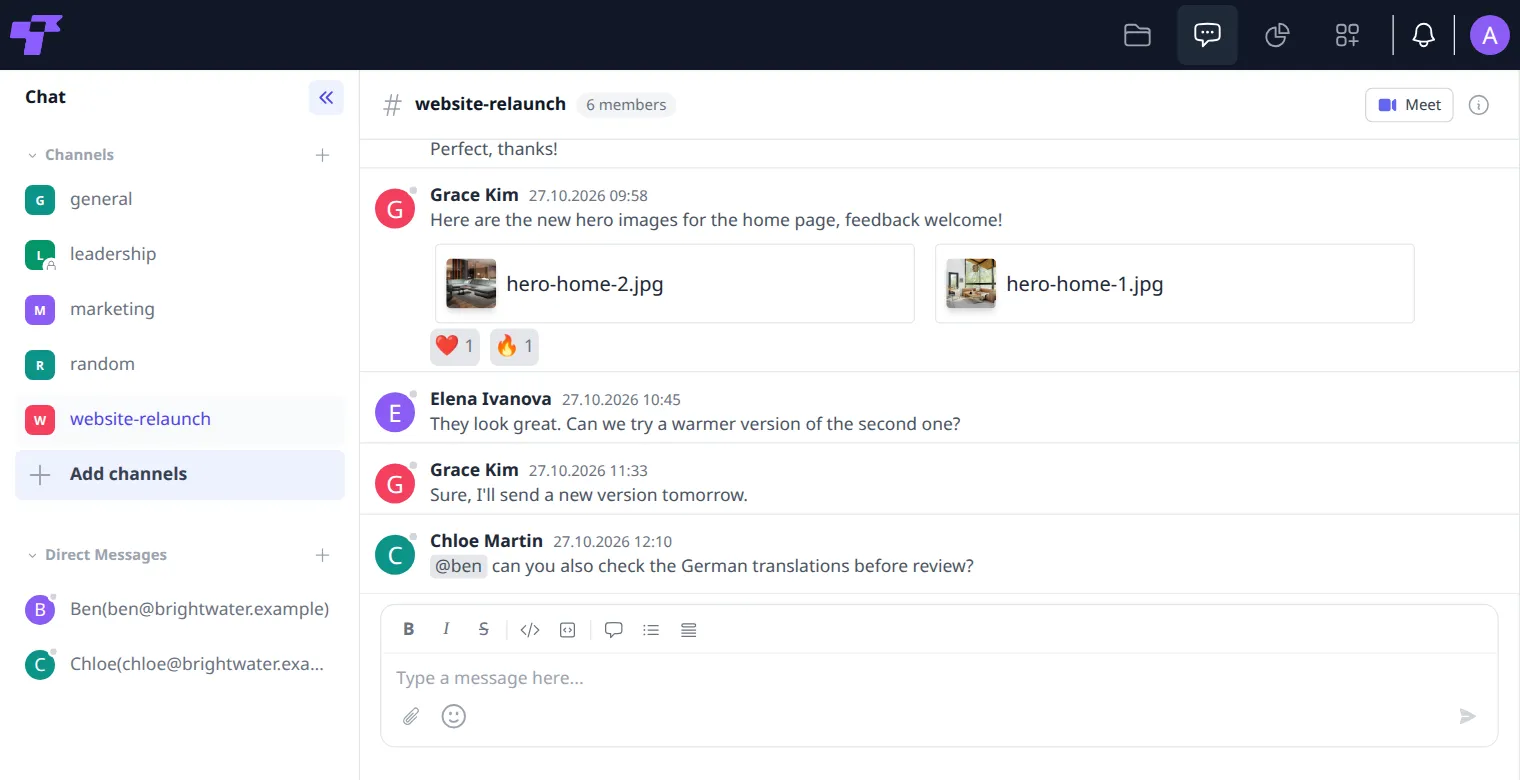
After you sign in, Twigex opens Files. The icons at the top right take you to the apps:
- Folder: Files. Keep documents in one place, edit them together and share them, also with a link.
- Speech bubble: Chat. Talk in channels and direct messages, and meet on video.
- Pie chart: Analytics. See your company's numbers in charts and dashboards.
- Squares: Projects. Plan work in tables, boards, timelines and calendars.
- Bell: your notifications.
- Your picture or initial: Settings, Sign out and About.
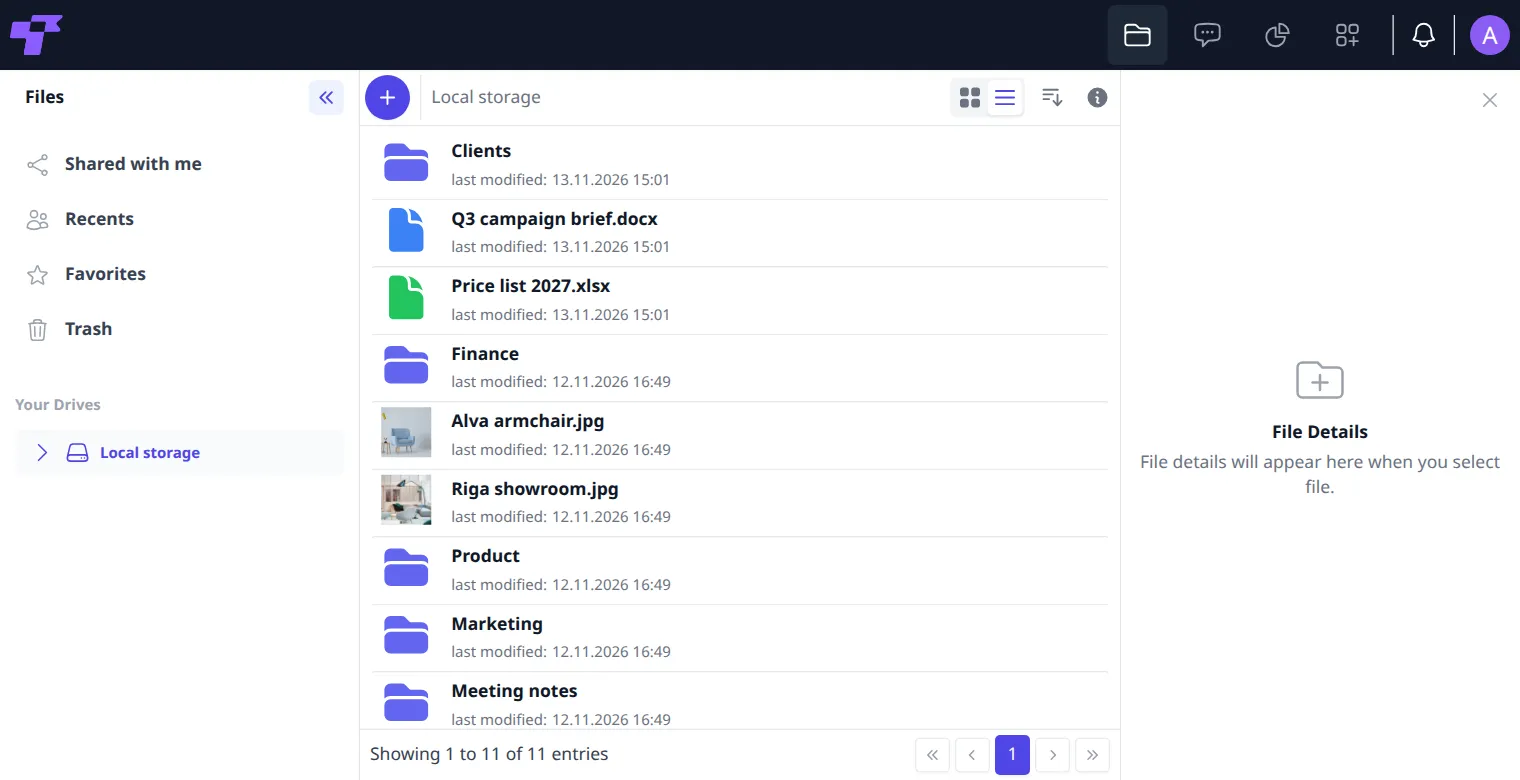
Each app has a panel on the left. To make more room, click « at its top right.
On a phone, the app icons and the panel on the left are in the menu. Tap the menu button at the top left to open it.
Notifications
Twigex tells you when something needs your attention, for example when someone shares a file with you, assigns you a task, mentions you or schedules a meeting. A number on the bell shows how many notifications you haven't read.
Click the bell to see them. Click a notification to go to what it's about.
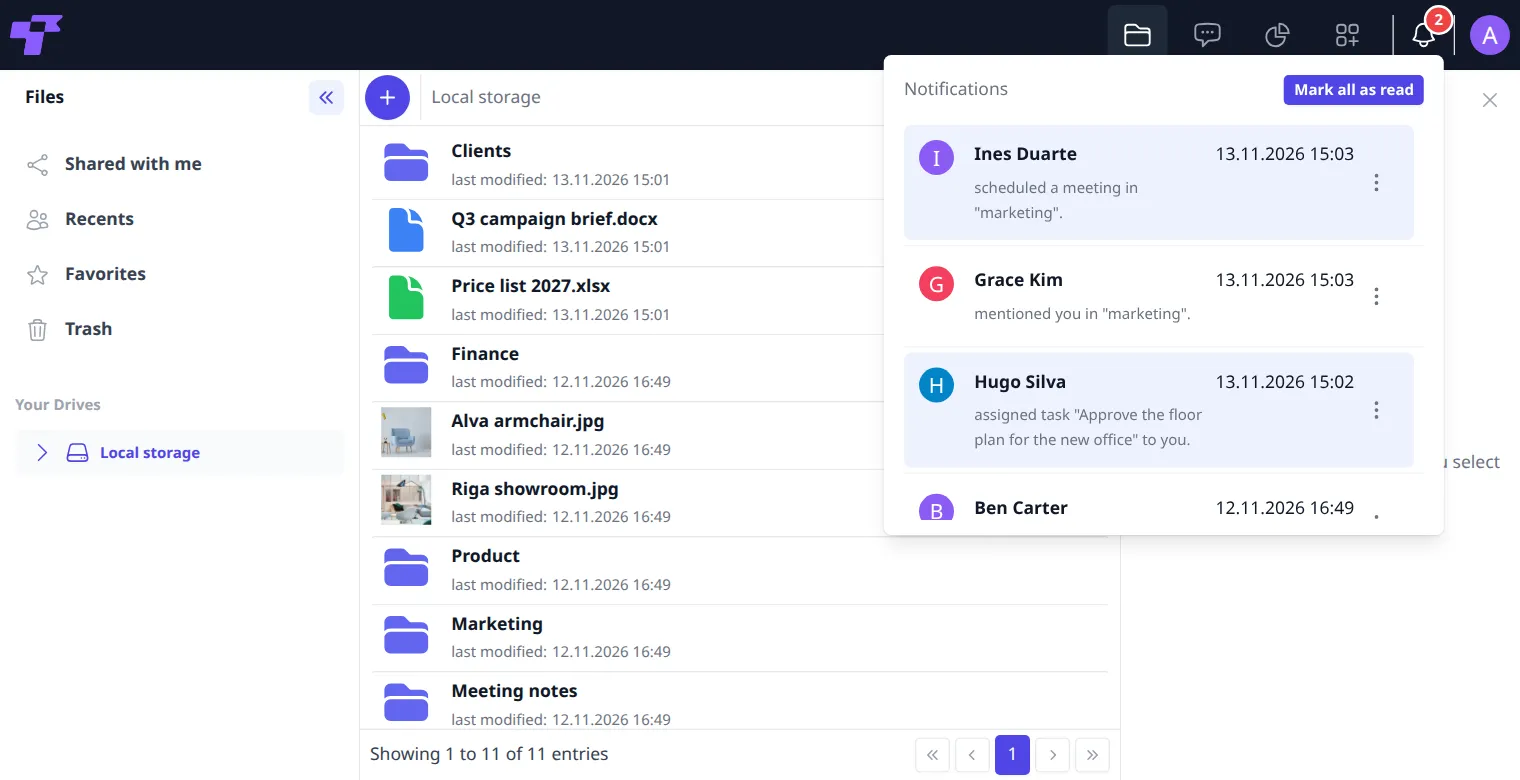
- To mark all as read, click Mark all as read.
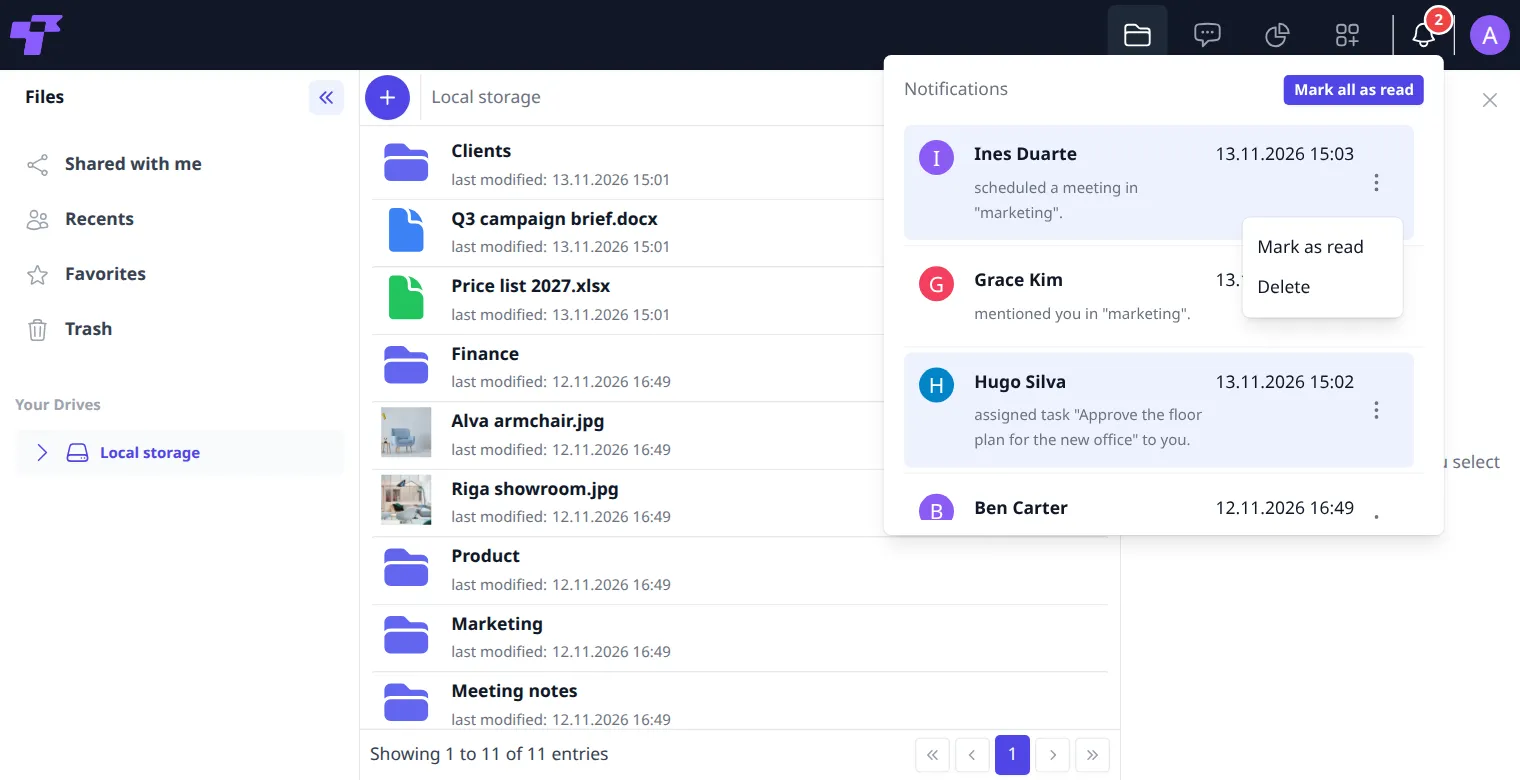
- To mark one as read or delete it, click ⋮ next to it.
To choose which notifications you get, see Choose your notifications.
About Twigex
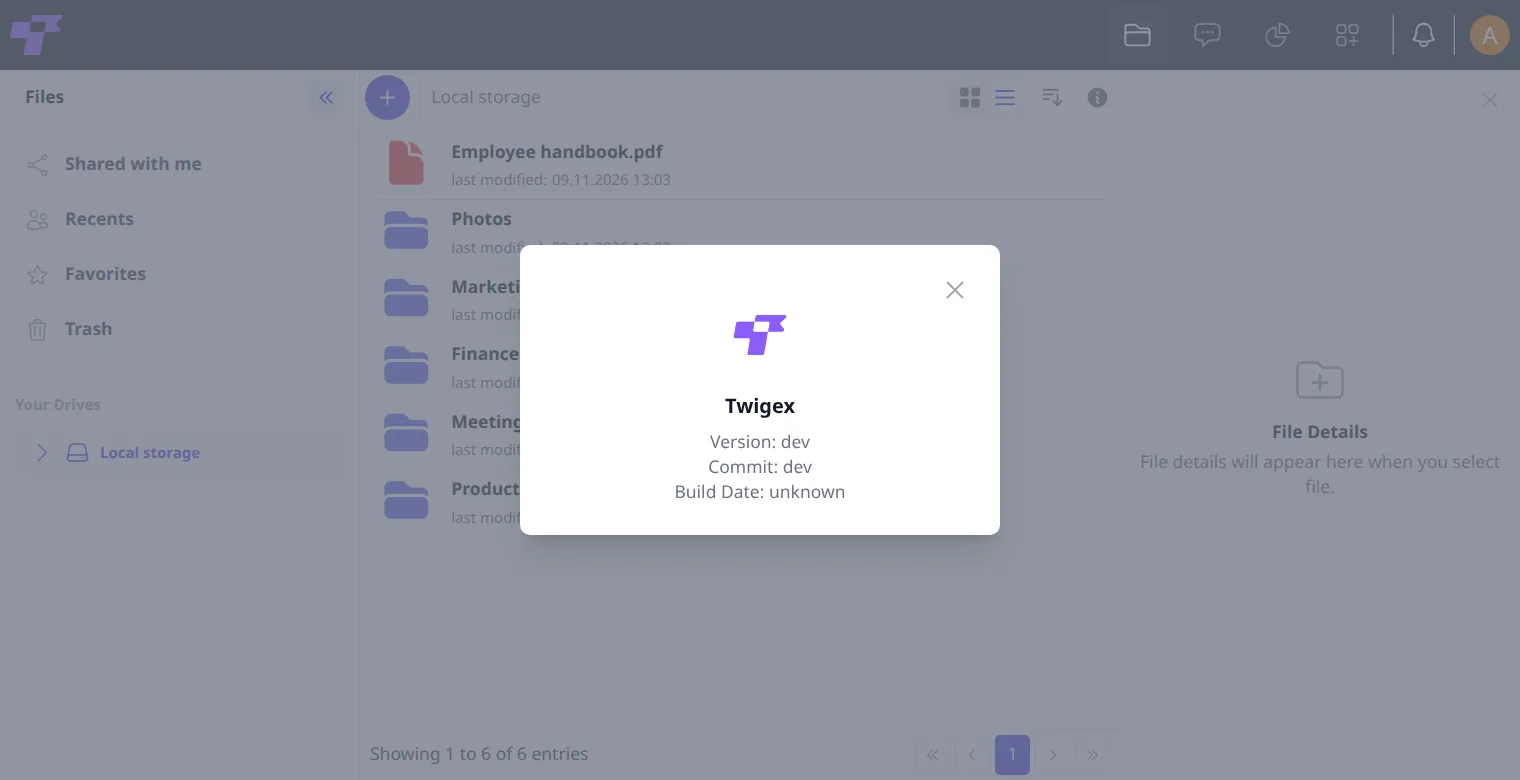
To see which version of Twigex you're using, click your picture or initial at the top right, then About.
Sign out
Click your picture or initial at the top right, then Sign out. On a shared computer, always sign out when you're done.