

Video meetings
On this page
Video meetings let your team meet face to face, share screens and invite people from outside Twigex. A meeting belongs to a channel: everyone in the channel can join, or only the people you invite.
To talk to one person, you don't need a meeting: use Call in a direct message (see Call someone in Chat).
Some features need a Self-hosted license or Enterprise; they're marked with a note.
Find your meetings
Open the channel in Chat and click Meet at its top right. The Video meetings dialog lists meetings Happening now and Scheduled meetings, and has buttons to start or schedule one.
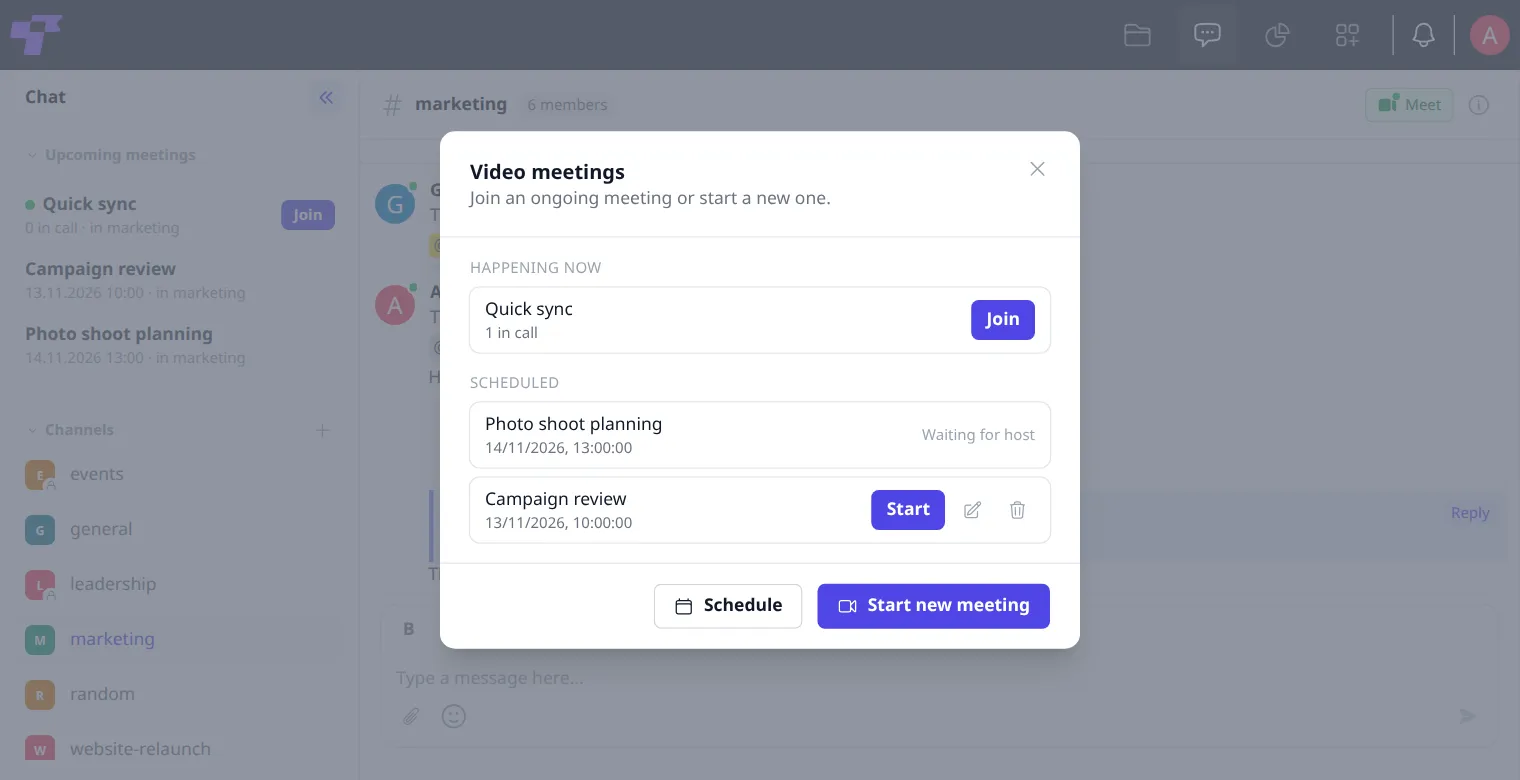
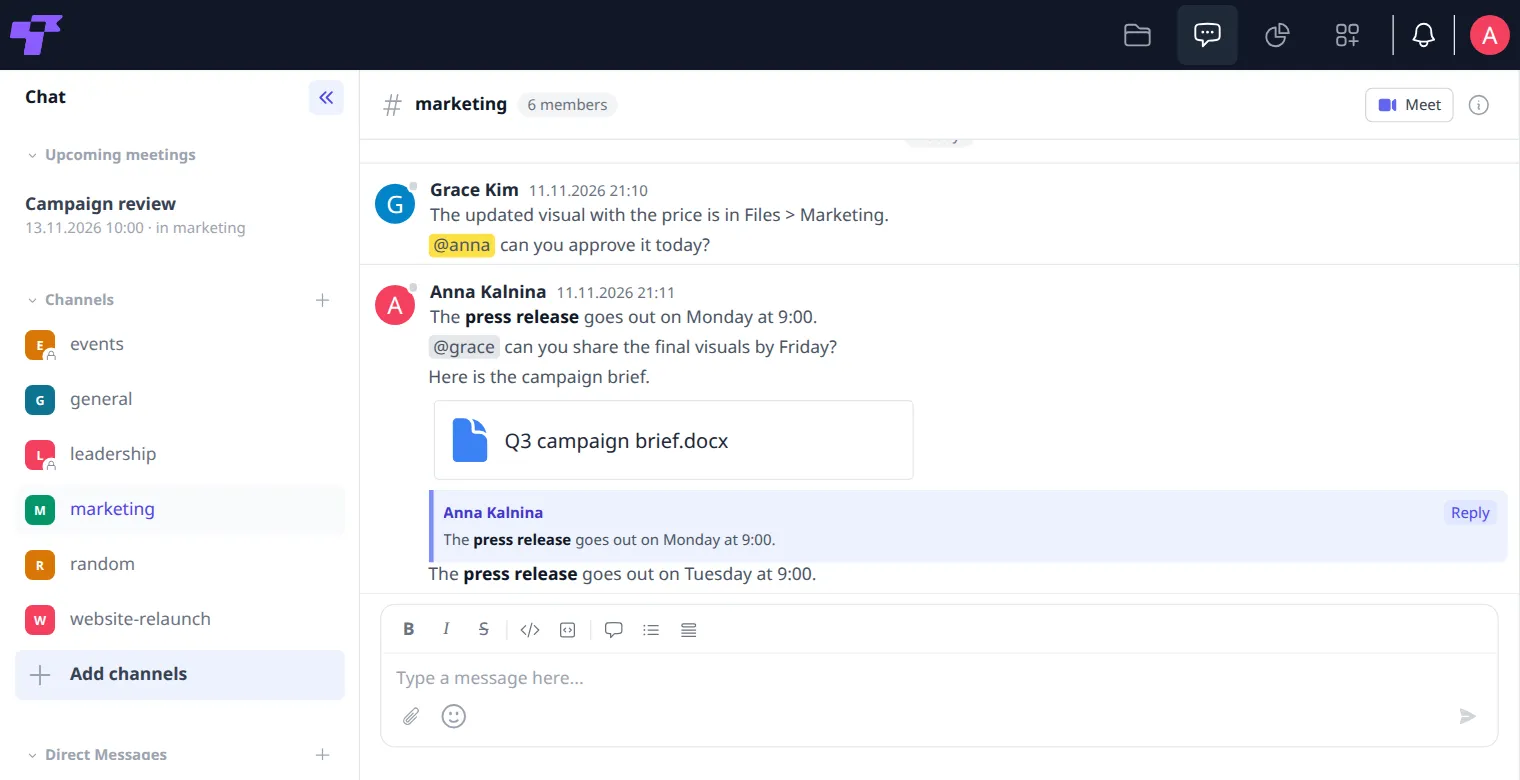
Meetings you're invited to also show under Upcoming meetings at the top of the panel on the left in Chat, with their date, time and channel.
Start a meeting now
- Click Meet, then Start new meeting.
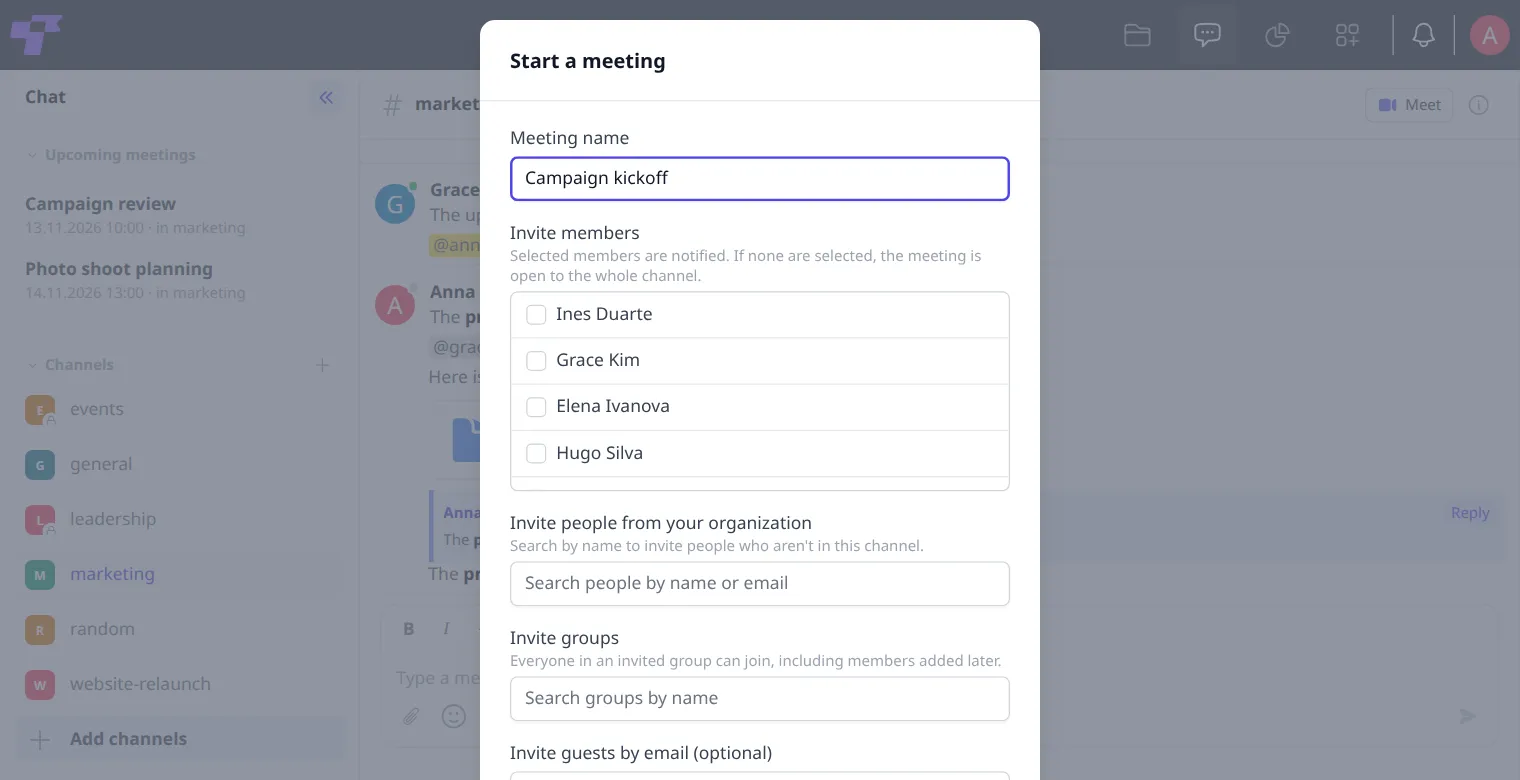
- Optionally, type a Meeting name and choose whom to invite.
- Click Start.
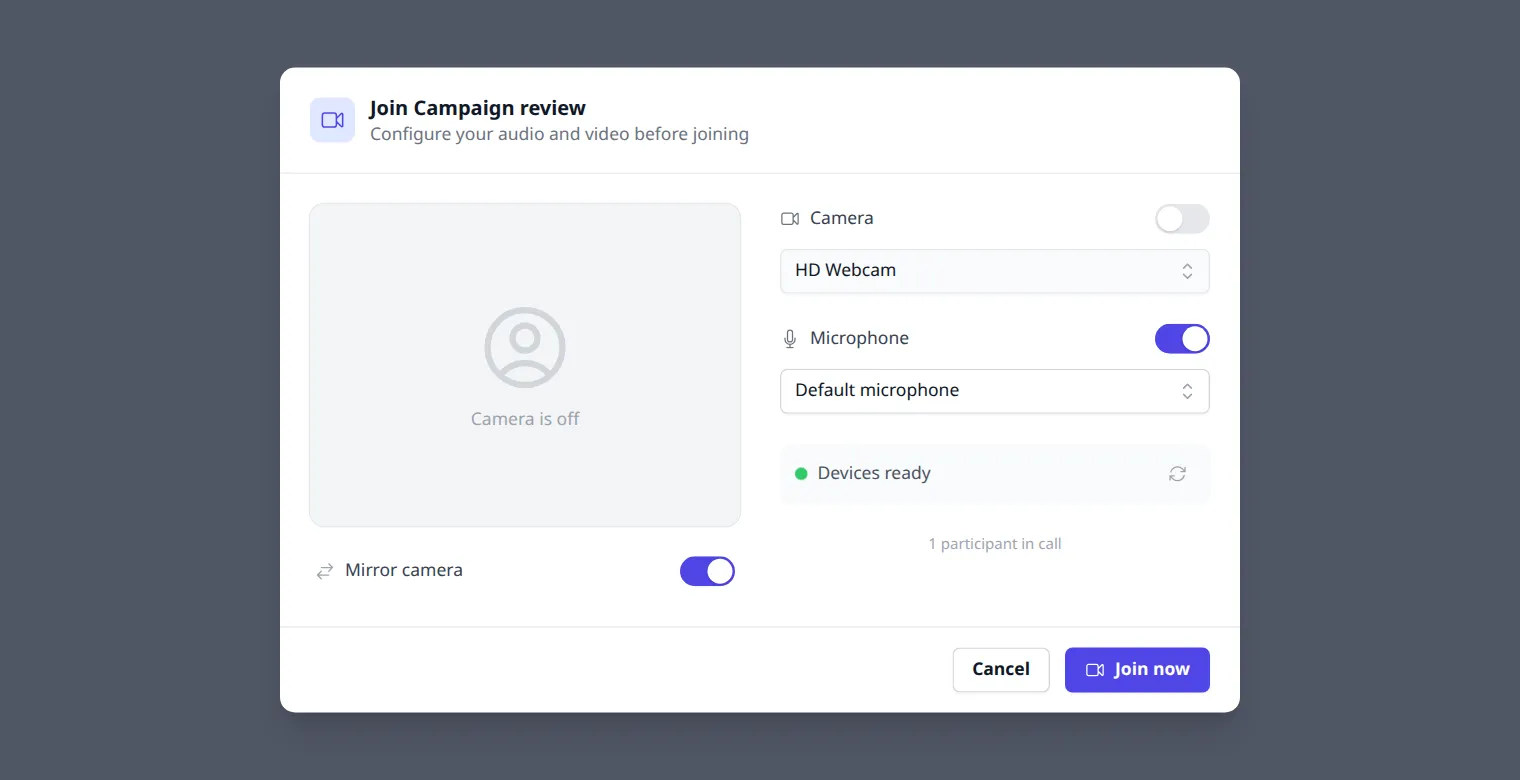
Before you join, check your camera and microphone. Use the switches to turn them on or off, and the lists to choose a device. Mirror camera flips your picture for you only. Click Join now.
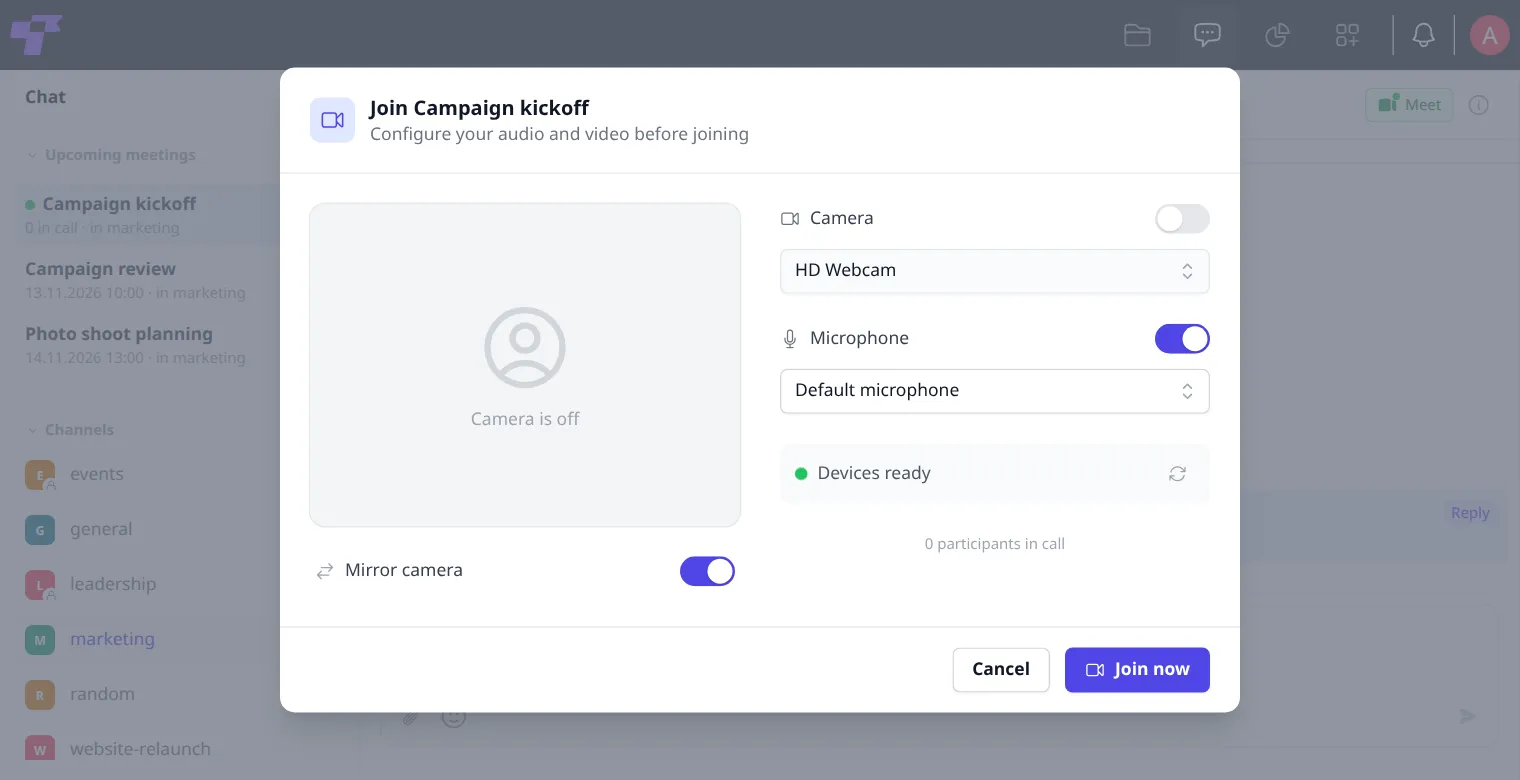
The first time, your browser asks to use your camera and microphone. Click Allow.
Join a meeting
You get a notification when someone invites you. To join, click Join next to the meeting under Upcoming meetings. You can also click Meet in the channel and then Join next to a meeting under Happening now.
During a meeting
The buttons at the bottom of the meeting are, from left to right:
- Share screen
- Camera: turn it on or off. The arrow next to it chooses another camera.
- Microphone: turn it on or off. The arrow next to it chooses another microphone.
- Invite people: only for the host.
- Make host: make another participant the host. Only for the host.
- Minimize: make the meeting smaller, so you can use the rest of Twigex.
- Leave call: the red button.
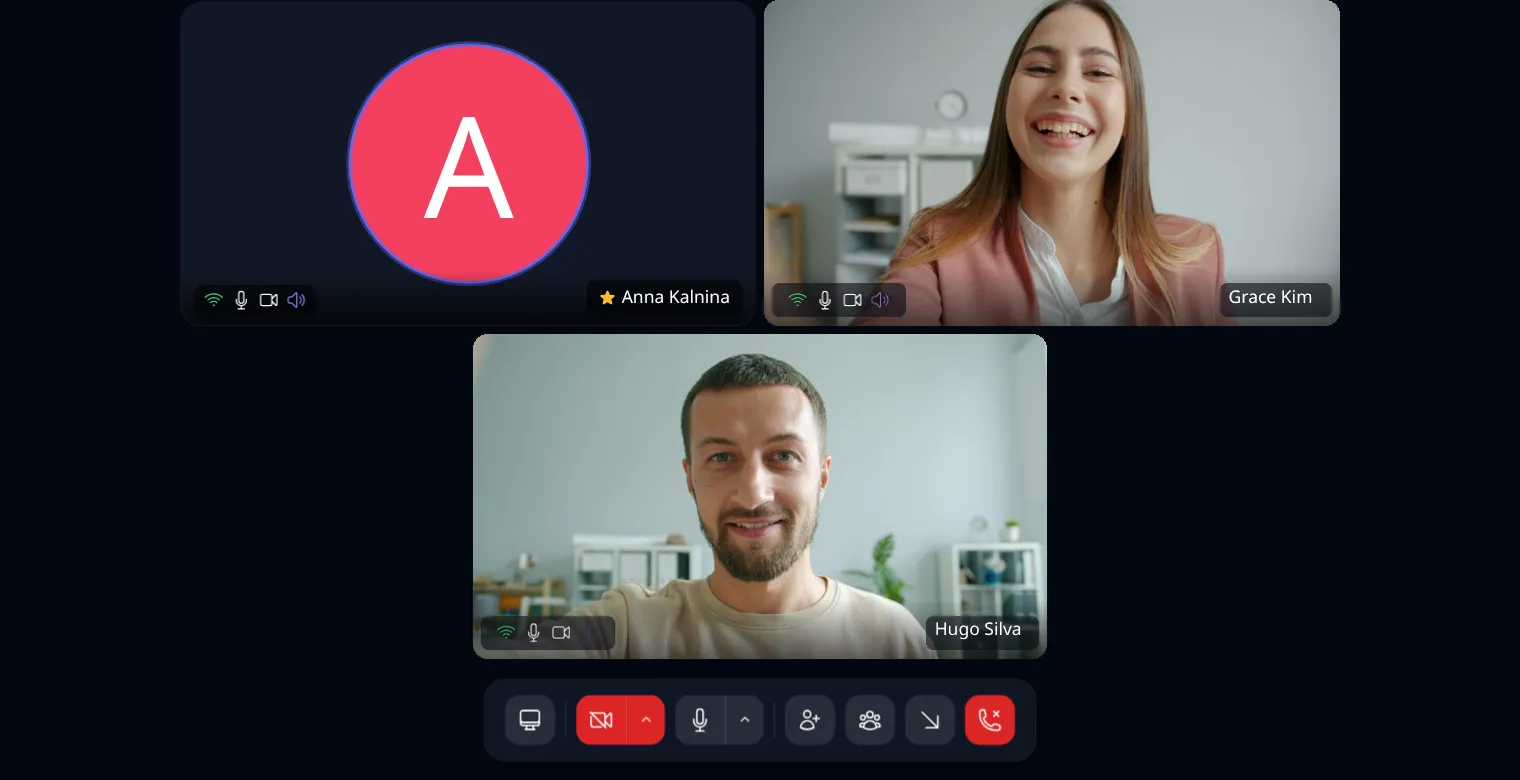
The host has a star next to their name.
Share your screen
- Click Share screen, the first button at the bottom.
- Your browser asks what to share. Choose a screen, a window or a browser tab, and confirm.
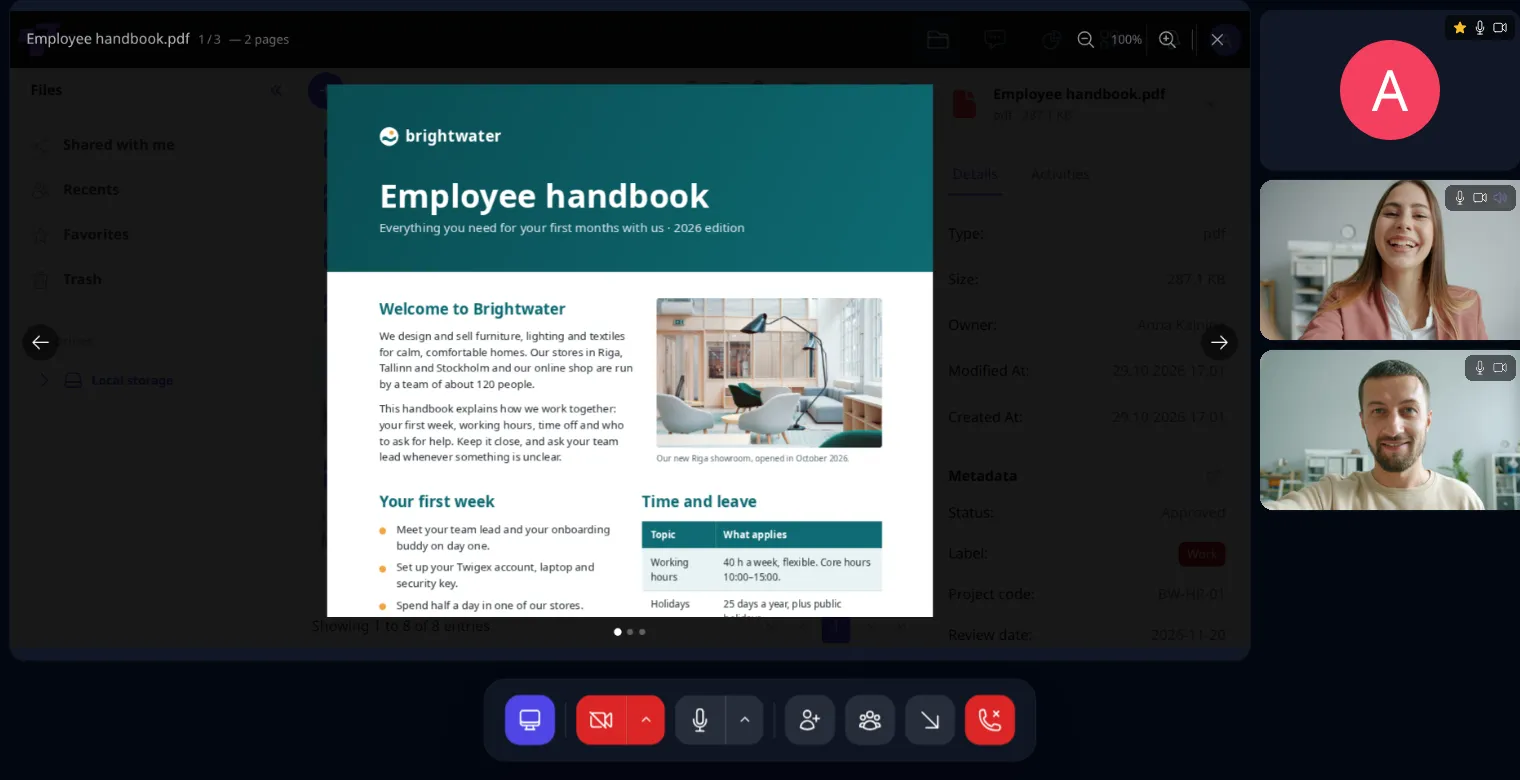
While you share, the button is purple. Everyone sees your screen large, with the participants in a column on the right. To stop, click Share screen again.
Make someone else the host
- Click Make host.
- Click the person.
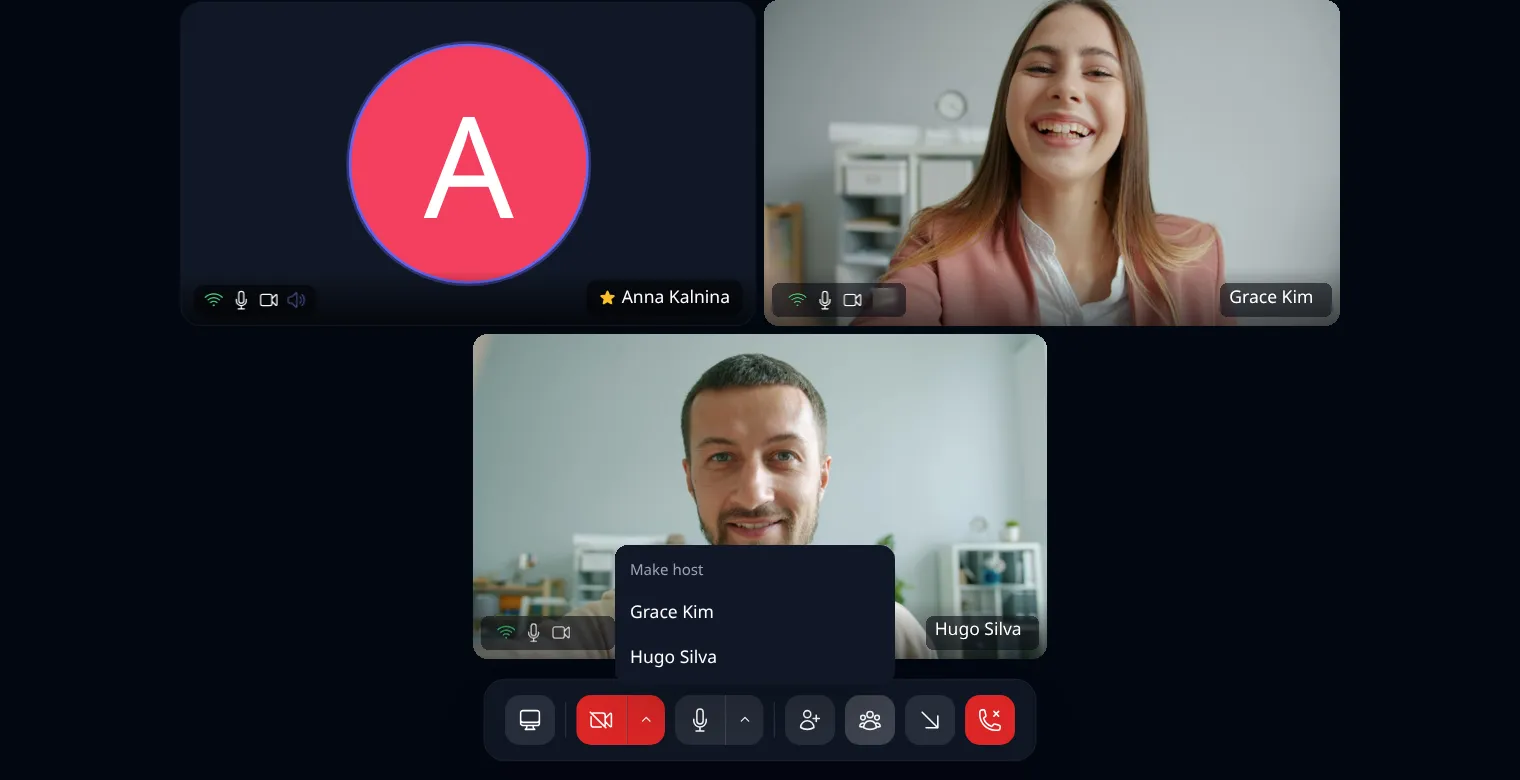
The star moves to the new host, and you no longer have Invite people and Make host. Guests aren't in the list.
Minimize the meeting
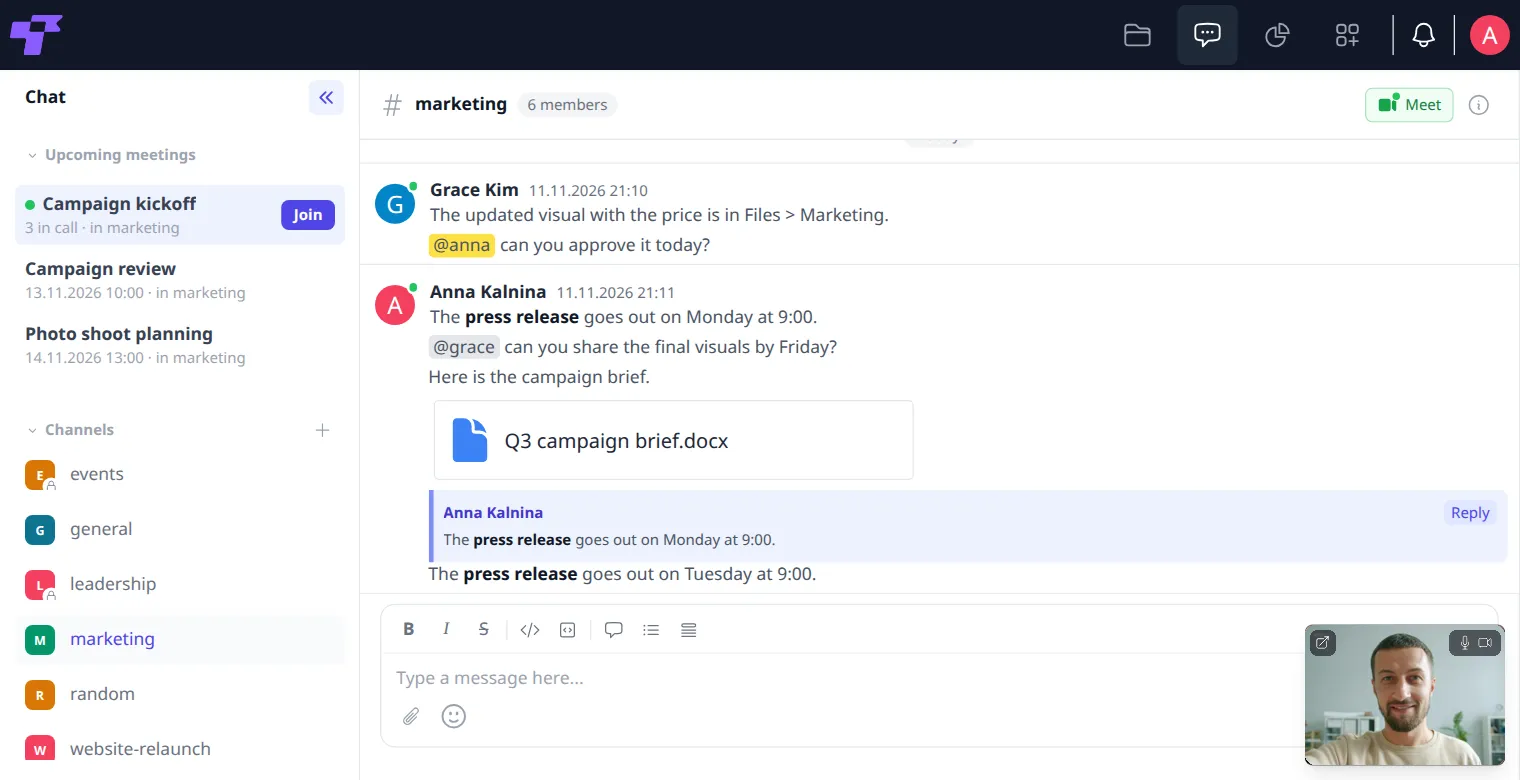
Click Minimize. The meeting becomes a small window at the bottom right, showing the person who is speaking, and you can use the rest of Twigex. To make it big again, click the small arrow at its top left.
Leave or end a meeting
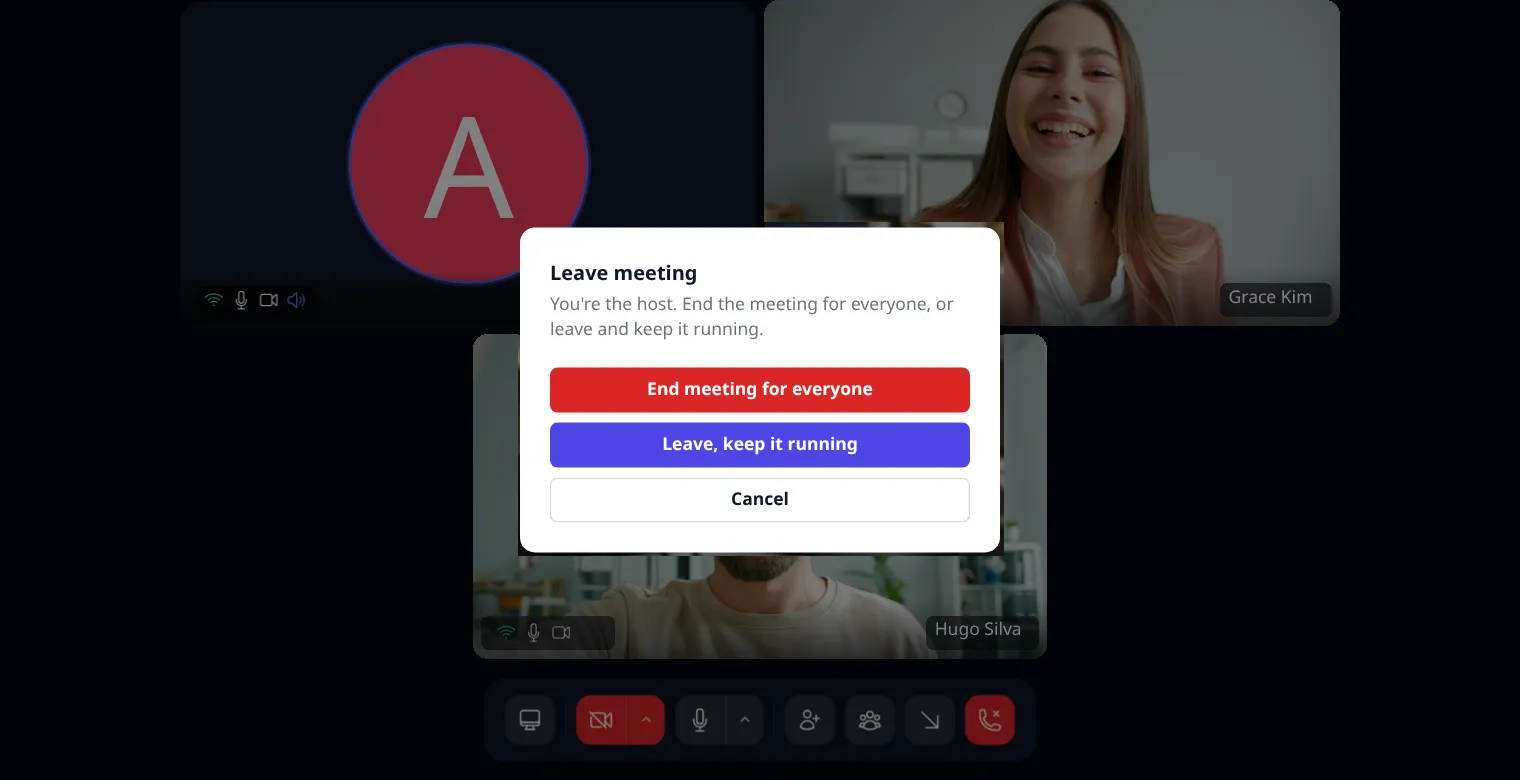
Click the red Leave call button. If you aren't the host, you leave right away. If you're the host, choose:
- End meeting for everyone: the meeting closes for all participants.
- Leave, keep it running: you leave and the others carry on.
Schedule a meeting
- Click Meet, then Schedule.
- Optionally, type a Meeting name, for example
Campaign review. - Click Select date & time, pick the day and set the time.
- Choose the Duration.
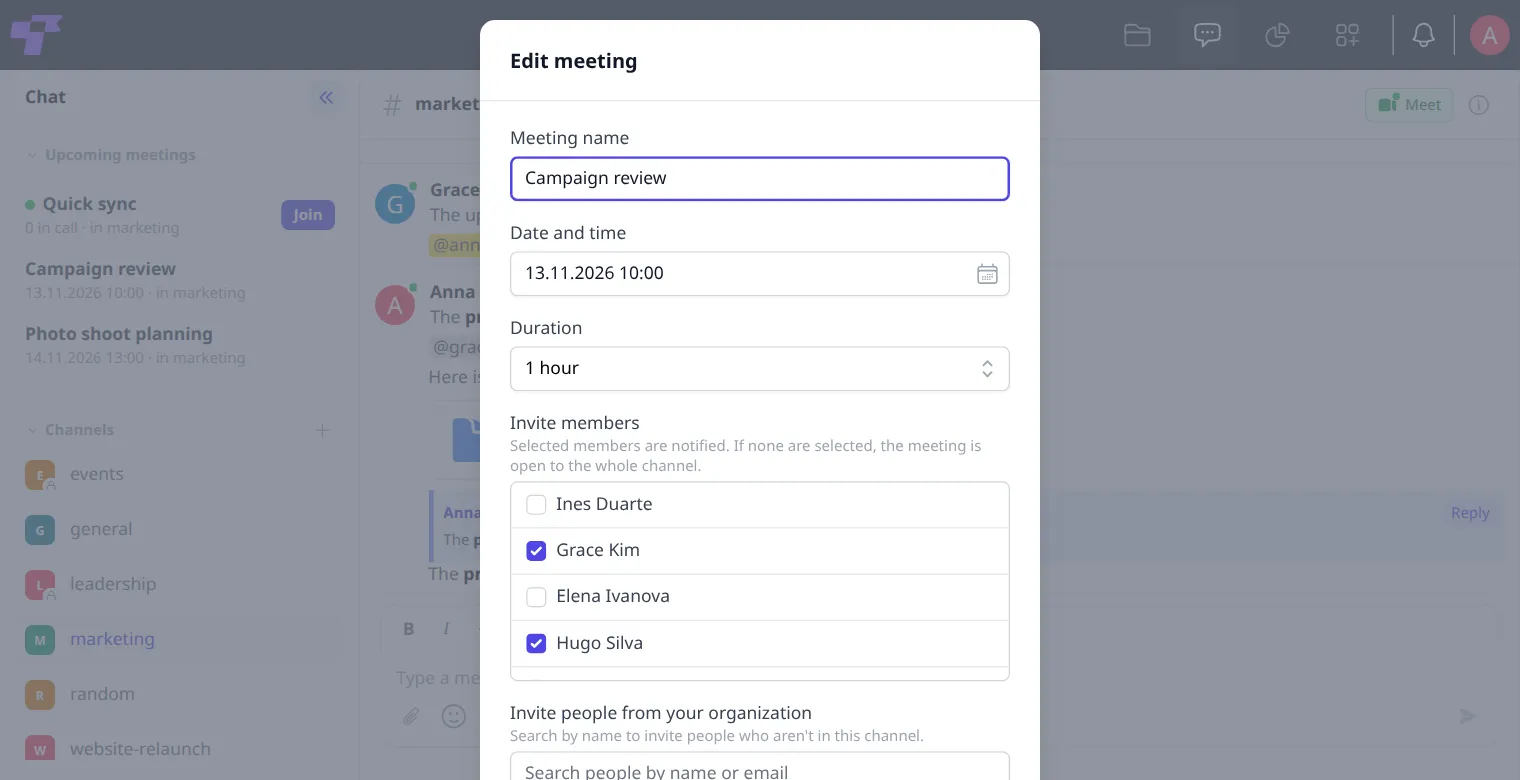
- Under Invite members, tick the channel members to invite. If you tick no one, the meeting is open to the whole channel.
- Optionally, invite people who aren't in the channel or guests by email, or groups (see below). Scroll down for these fields.
- If you invite guests, you can set a Guest password. Guests must enter it to join. The invitation doesn't include it, so send it to them separately.
- Click Schedule.
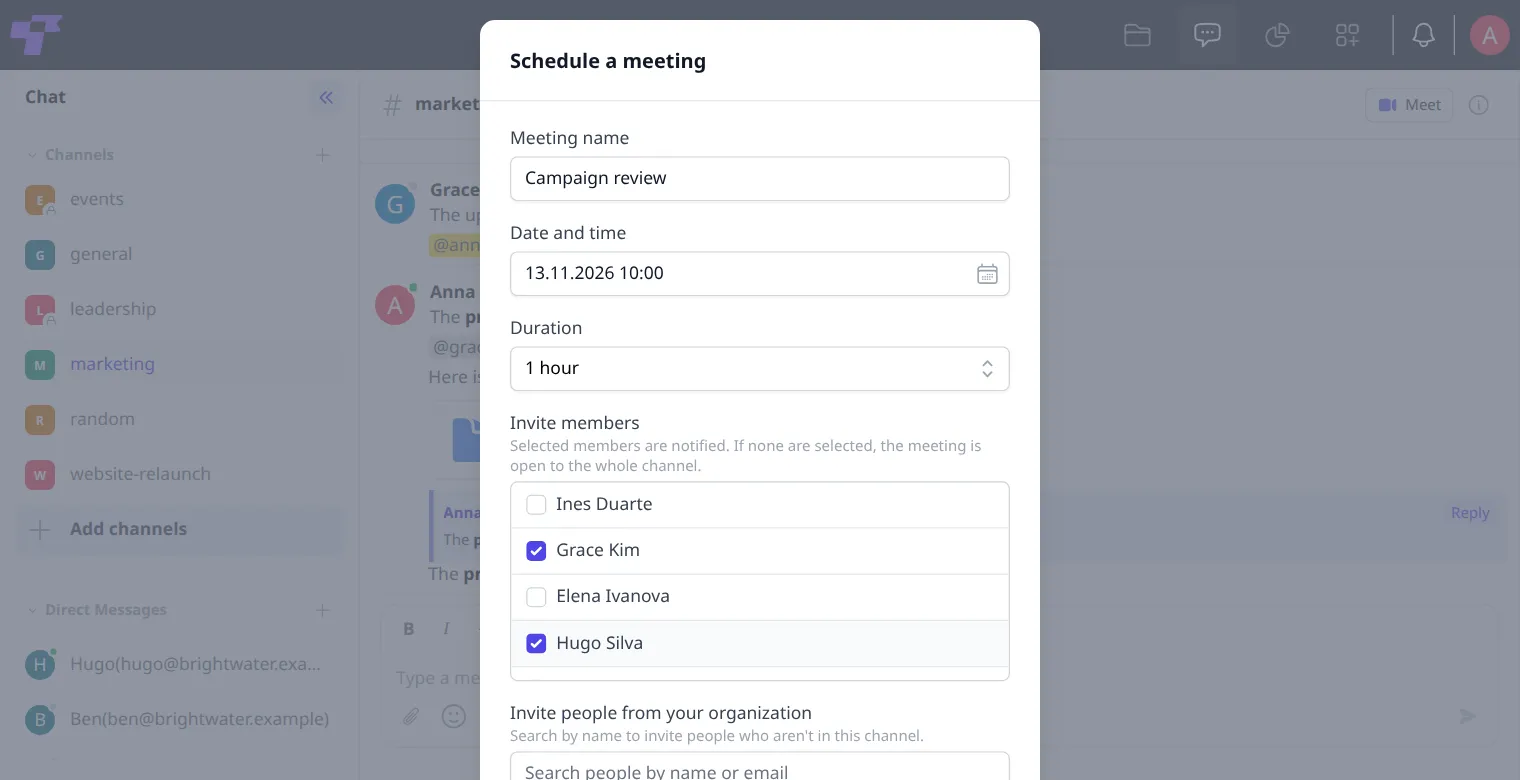
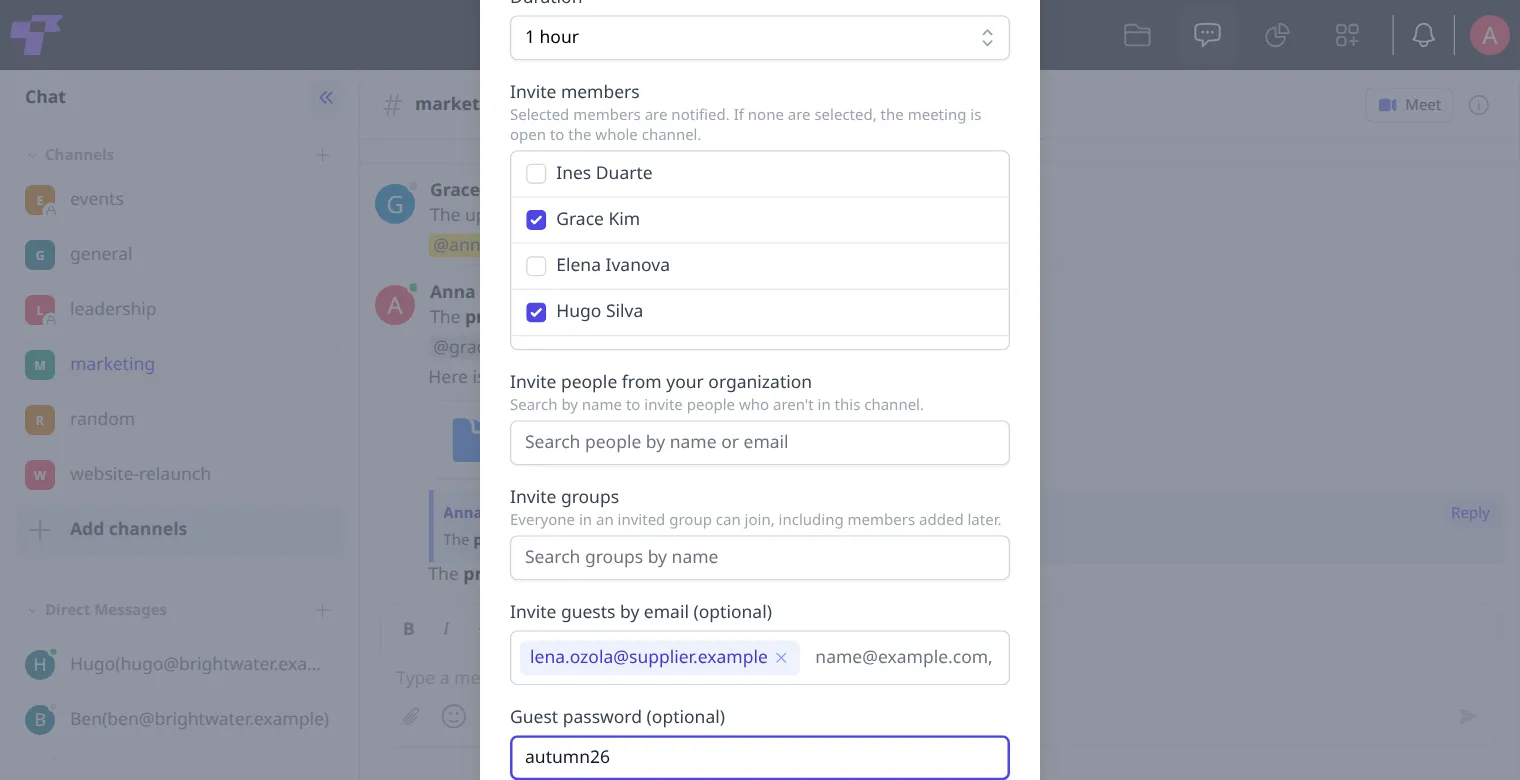
The meeting shows under Upcoming meetings at the top left, with its date, time and channel. The people you invited get a notification, and guests get an email with a link.
This needs a Self-hosted license or Enterprise. See plans.
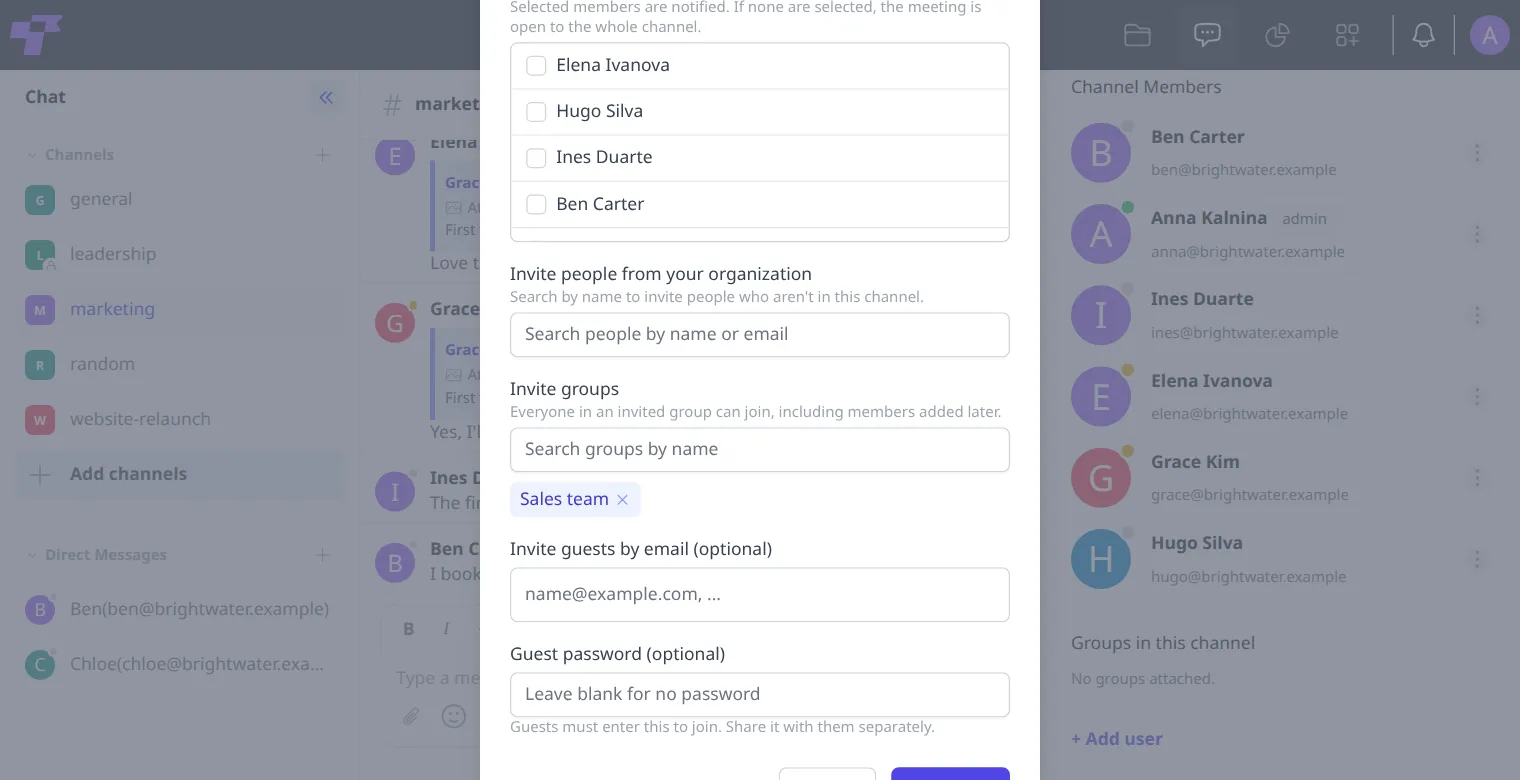
To invite a whole group, type its name under Invite groups in the schedule form, for example Sales, and click the group. It's added below the field. As the form says, everyone in an invited group can join, including people added to the group later. When you click Schedule, the group's members get a notification, and the meeting shows under their Upcoming meetings.
Edit or cancel a scheduled meeting
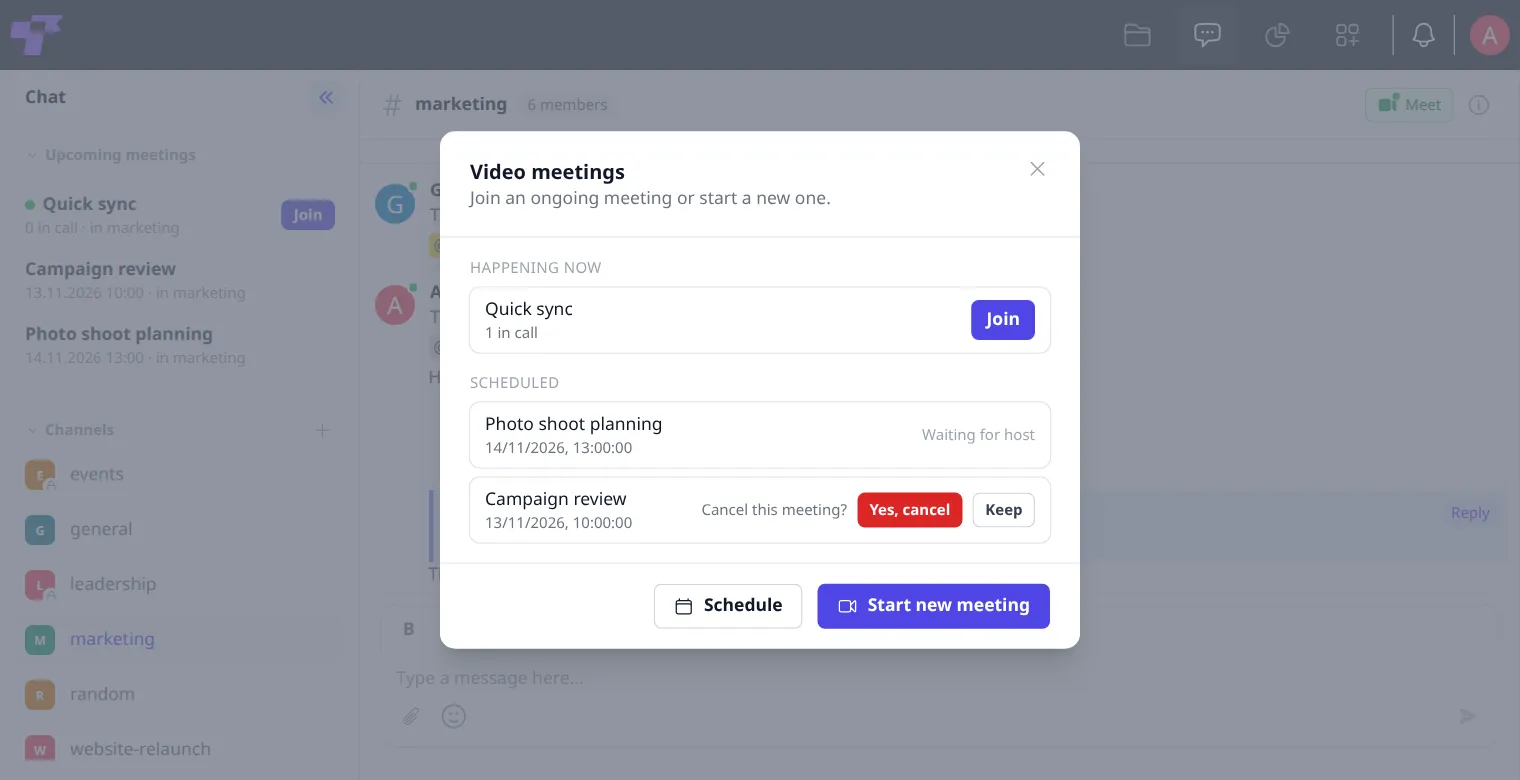
Only the meeting's host can change it. The host is the person who scheduled it. Click Meet in the channel. Next to your meeting under Scheduled are Start, a pencil and a trash can.
- Edit: click the pencil. Edit meeting has the same fields as the schedule form. Make your changes and click Save changes.
- Cancel: click the trash can. Click Yes, cancel to confirm, or Keep to leave the meeting as it is.
Start a scheduled meeting
Only the host can start a scheduled meeting:
- Click Meet in the channel and then Start next to the meeting, or
- Click the meeting under Upcoming meetings and then Start meeting.
Then check your camera and microphone and click Join now.
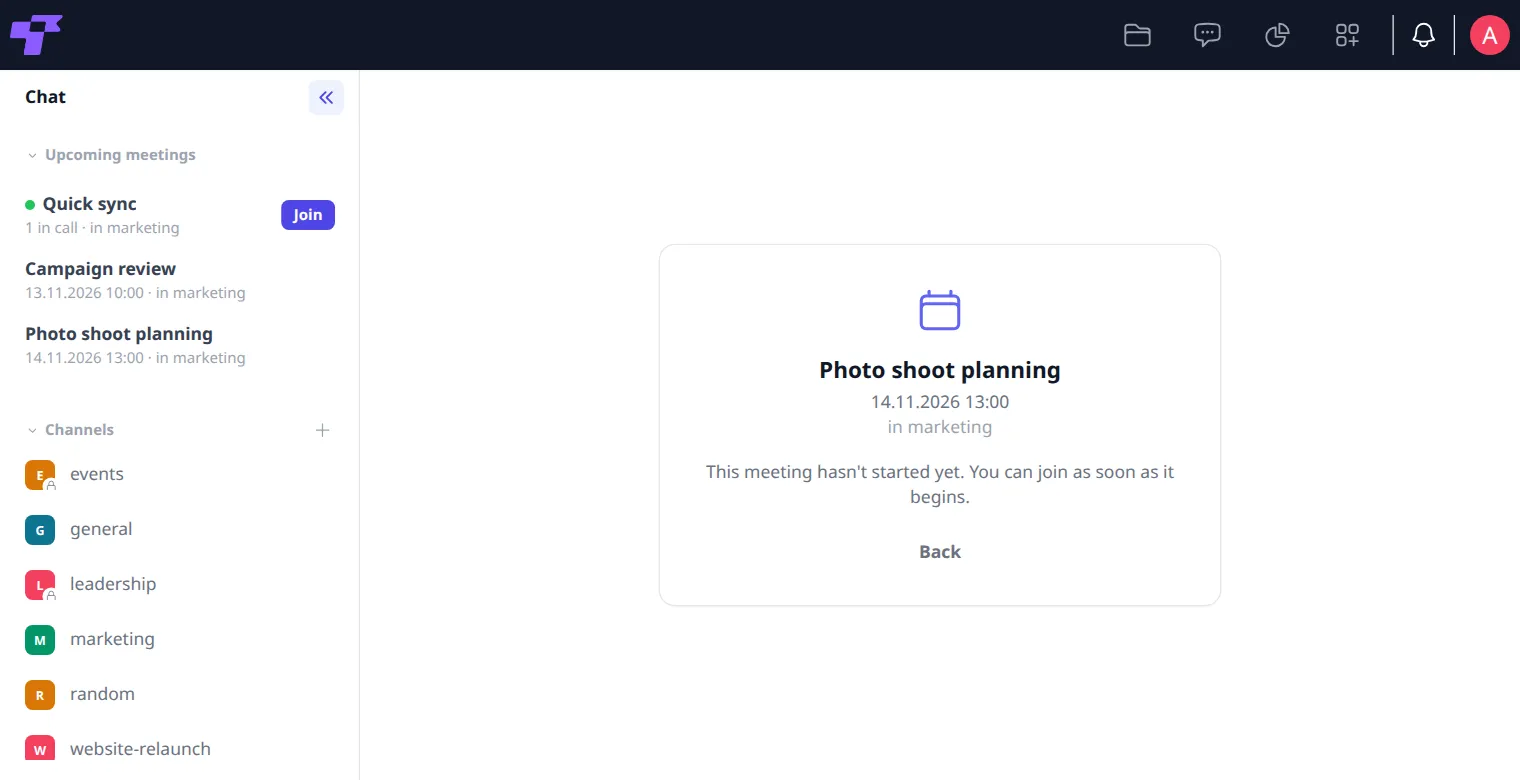
Until the host starts it, others see Waiting for host next to the meeting in the Meet dialog. When they click it under Upcoming meetings, they see "This meeting hasn't started yet. You can join as soon as it begins."
Once the host starts it, the meeting moves to Happening now, and the others can join.
Invite guests
People outside Twigex can join with a link.
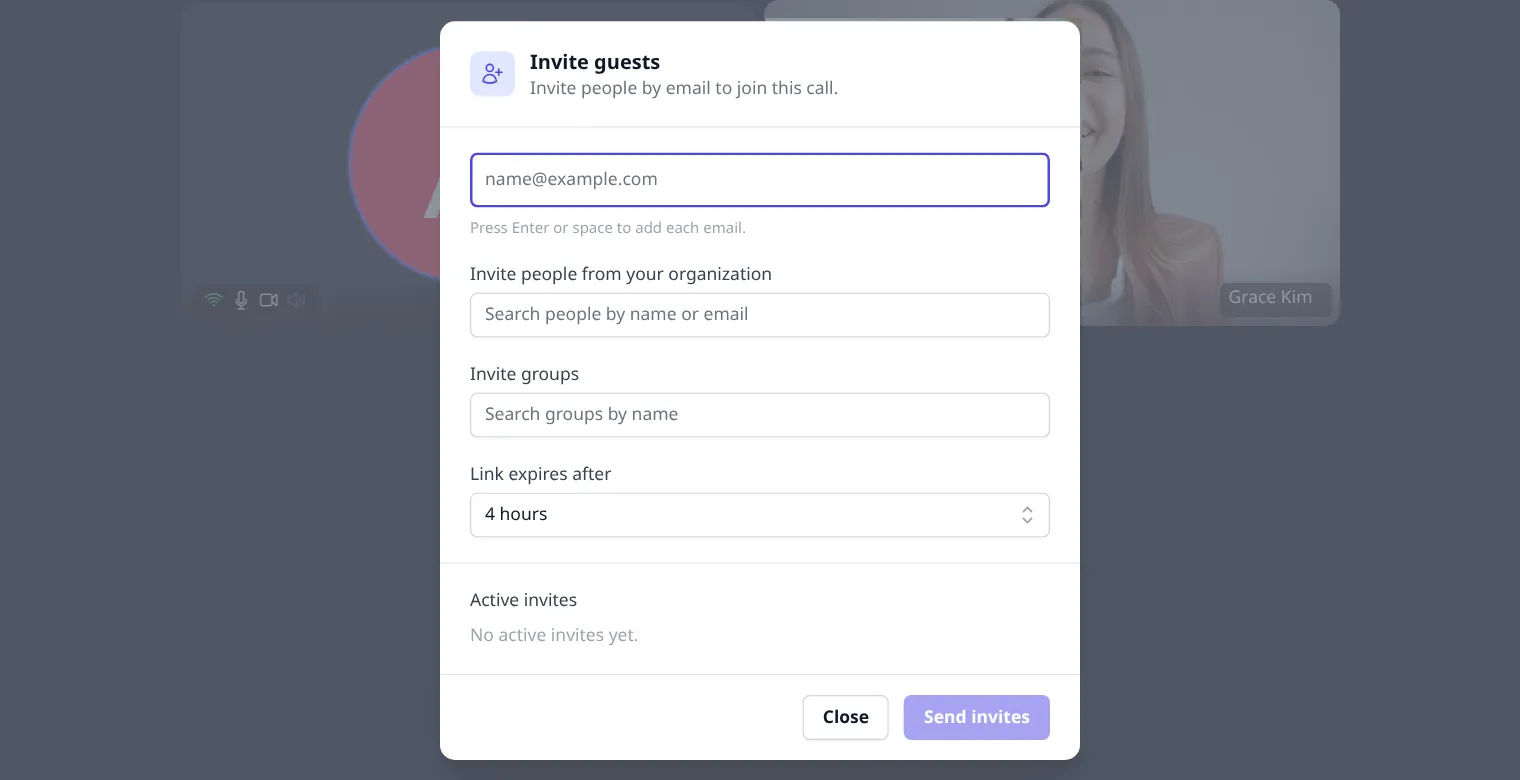
- In the meeting, click Invite people.
- Type an email address and press Enter or space. Add as many as you need.
- Choose how long the link works under Link expires after.
- Click Send invites.
You can also invite colleagues and groups from the same dialog. Active invites lists the invites you've sent, and you can copy or revoke each link there.
To invite guests to a scheduled meeting, add their email addresses in the schedule form (see Schedule a meeting).
What guests see
A guest gets an email, "You have been invited to a scheduled meeting", with the meeting's name, time and a Join link. They don't need a Twigex account.
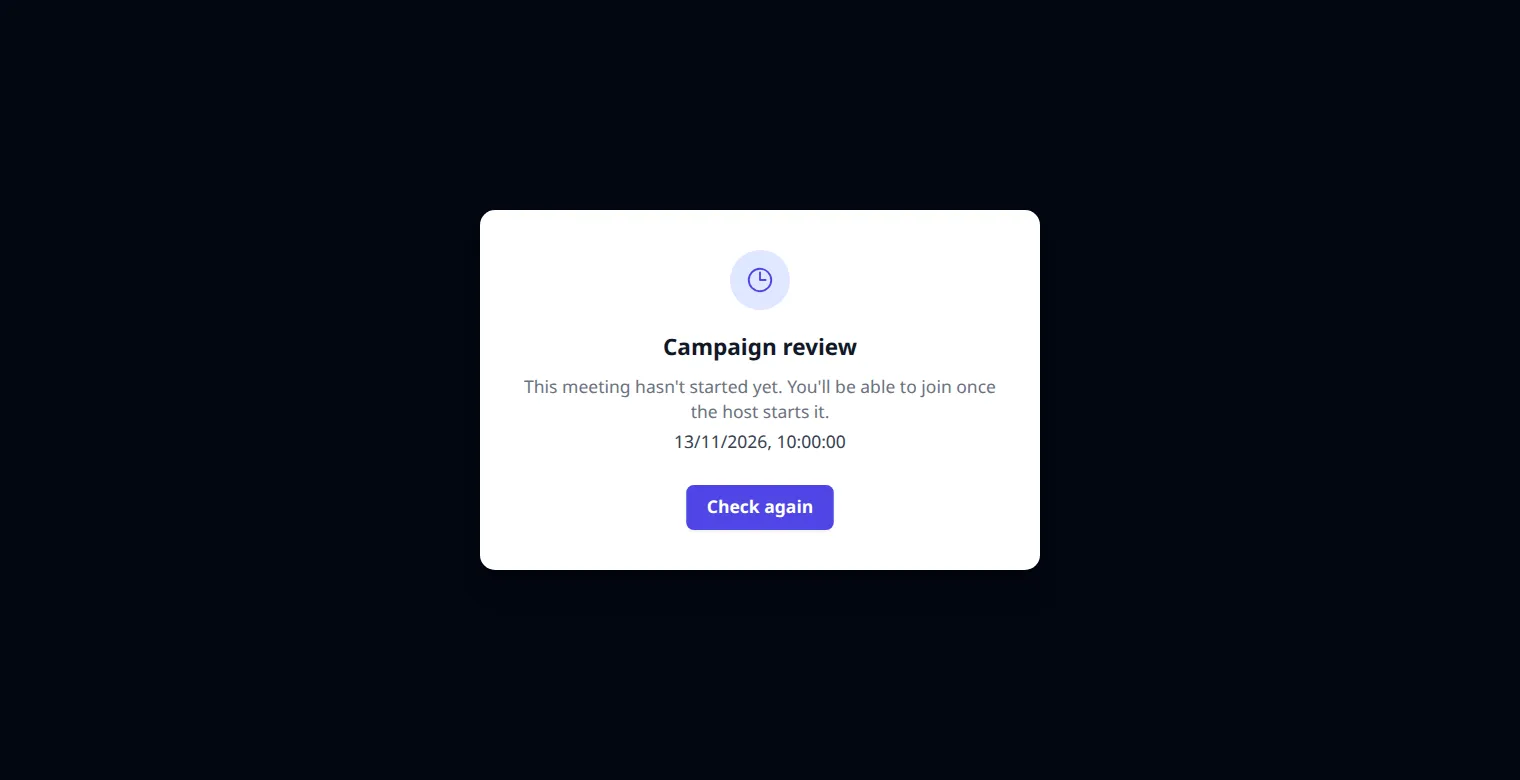
- The guest opens the link. If the meeting hasn't started yet, they see "This meeting hasn't started yet. You'll be able to join once the host starts it." When the host has started it, they click Check again.
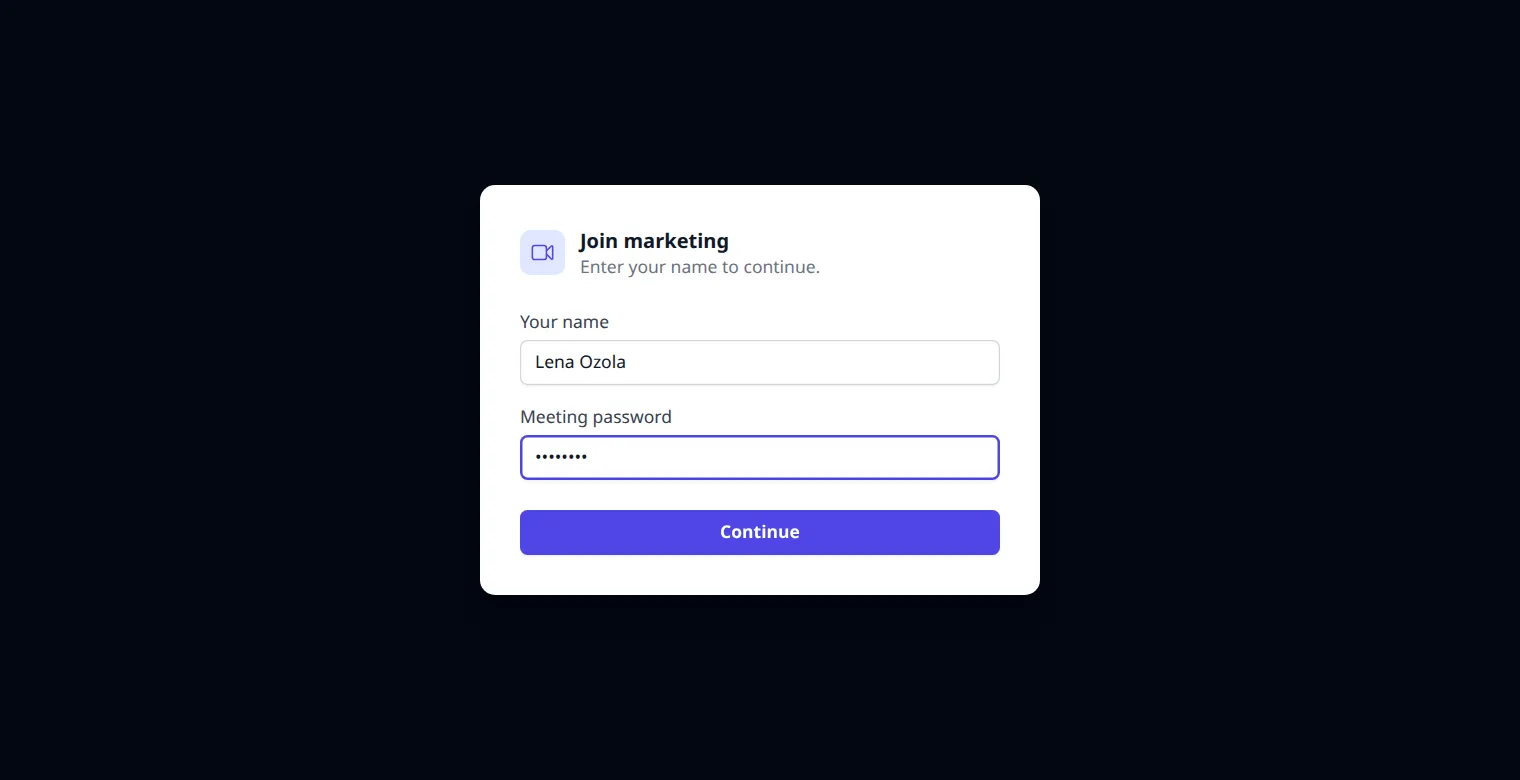
- They type Your name and, if the meeting has one, the Meeting password, and click Continue.
- They check their camera and microphone and click Join now.
In the meeting, guests have only Share screen, Camera, Microphone and Leave call. When the meeting ends, they see "You left the call" with a Rejoin button.
If something doesn't work
- The camera and microphone check shows no picture, and the camera and microphone lists are empty: your browser has blocked the camera and microphone for Twigex. Allow both in your browser's site settings and start or join again.
- A meeting shows Waiting for host: only the person who scheduled it can start it. Wait for them, or ask them to start it.
- A guest can't get in: check that they use the link from the invitation and the right Meeting password. The invitation doesn't include the password, so send it to them separately.